

Member Guide
Welcome to
your PLAYBOOK
guide.
Pick what you want to do and we'll show you where to tap, step by step.

- 7guide sections
- 5app areas
- 23member FAQs
Get started
Get started.
Sign in, tell Layla what matters, and choose a membership if you are joining.
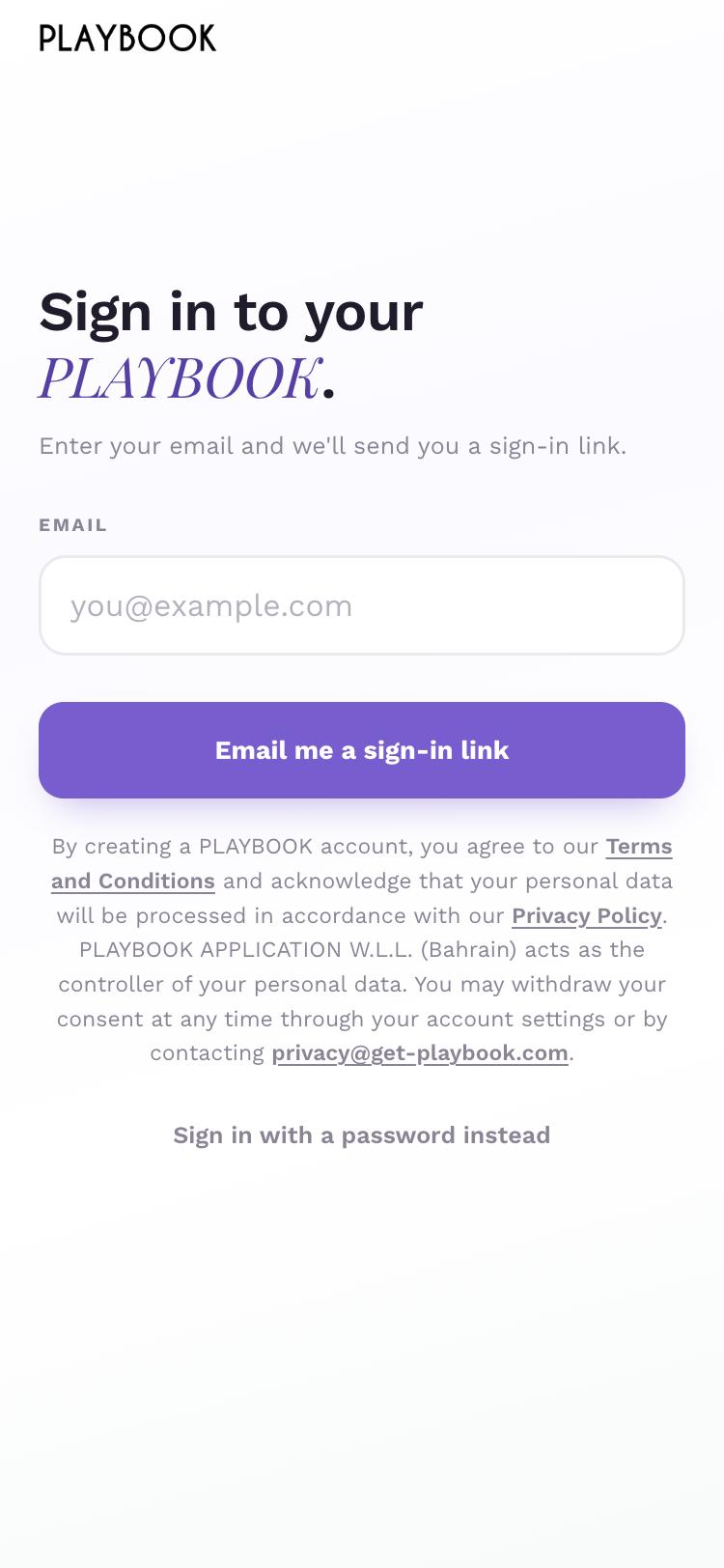
Enter your email.
Tap Email me a sign-in link. The iOS and Android apps send a sign-in code instead.

Open the link in your email. It expires in 1 hour and works once.
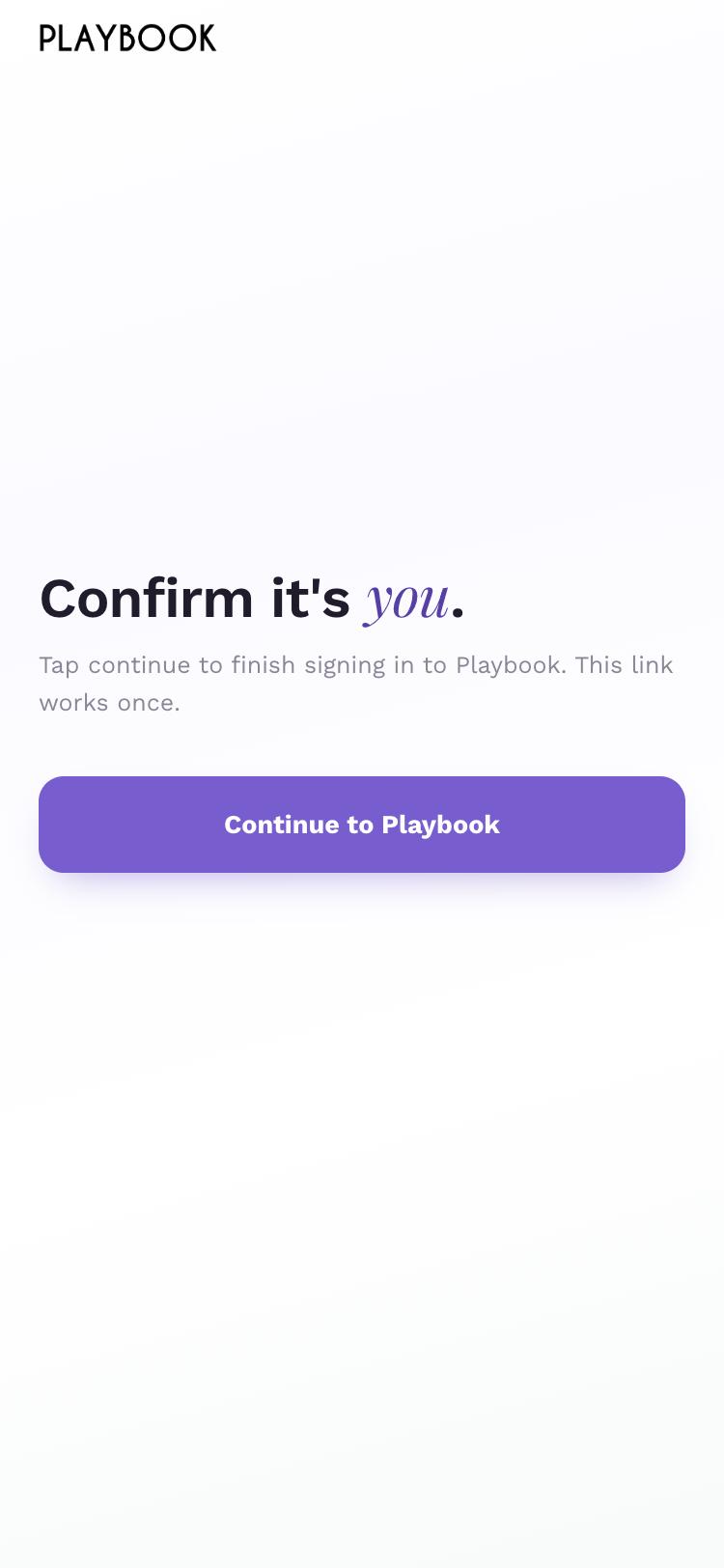
Tap Continue to Playbook.
If you can’t sign in, start again from Sign in and tap Sign in with a password instead.
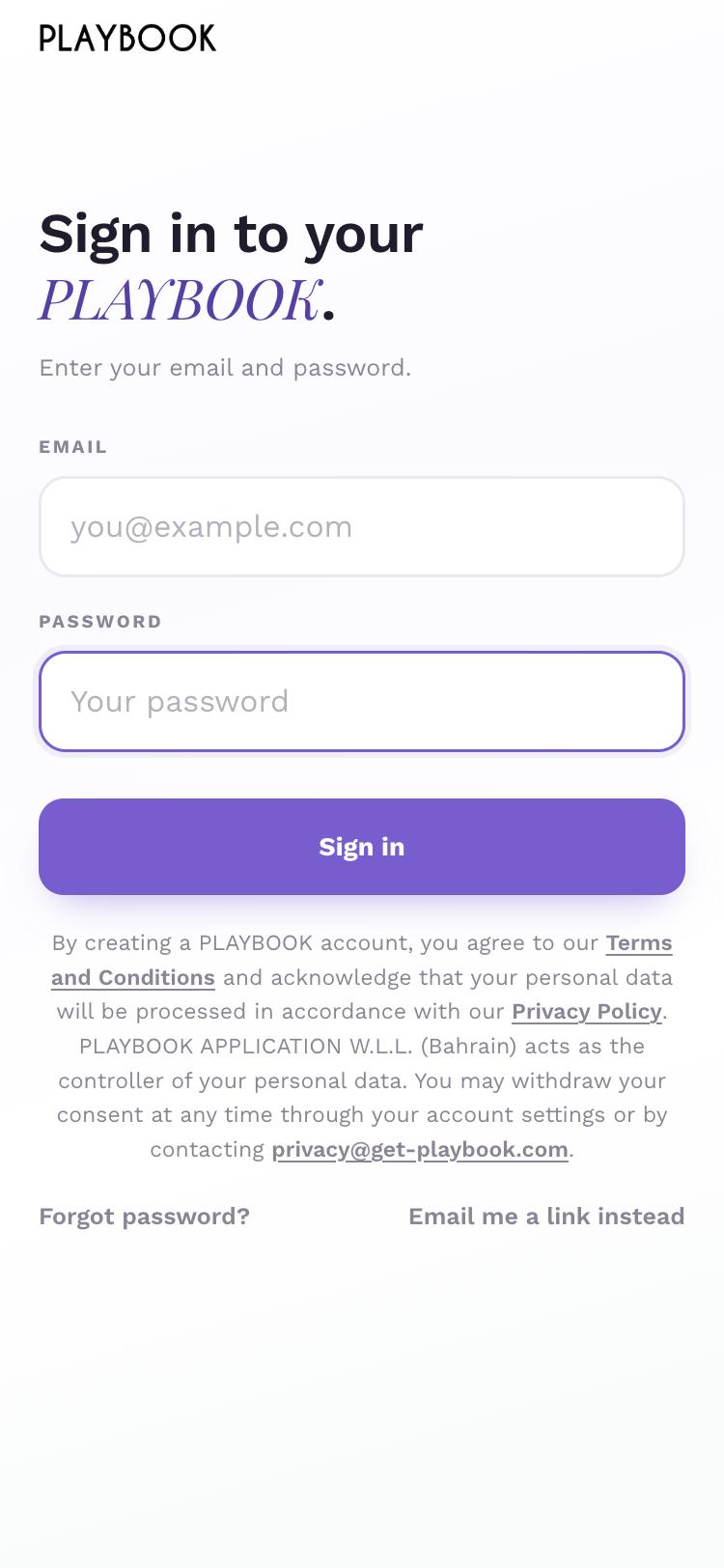
Enter your email, then tap Forgot password?. Or tap Email me a link instead to request a fresh sign-in link.
Step 1 of 6
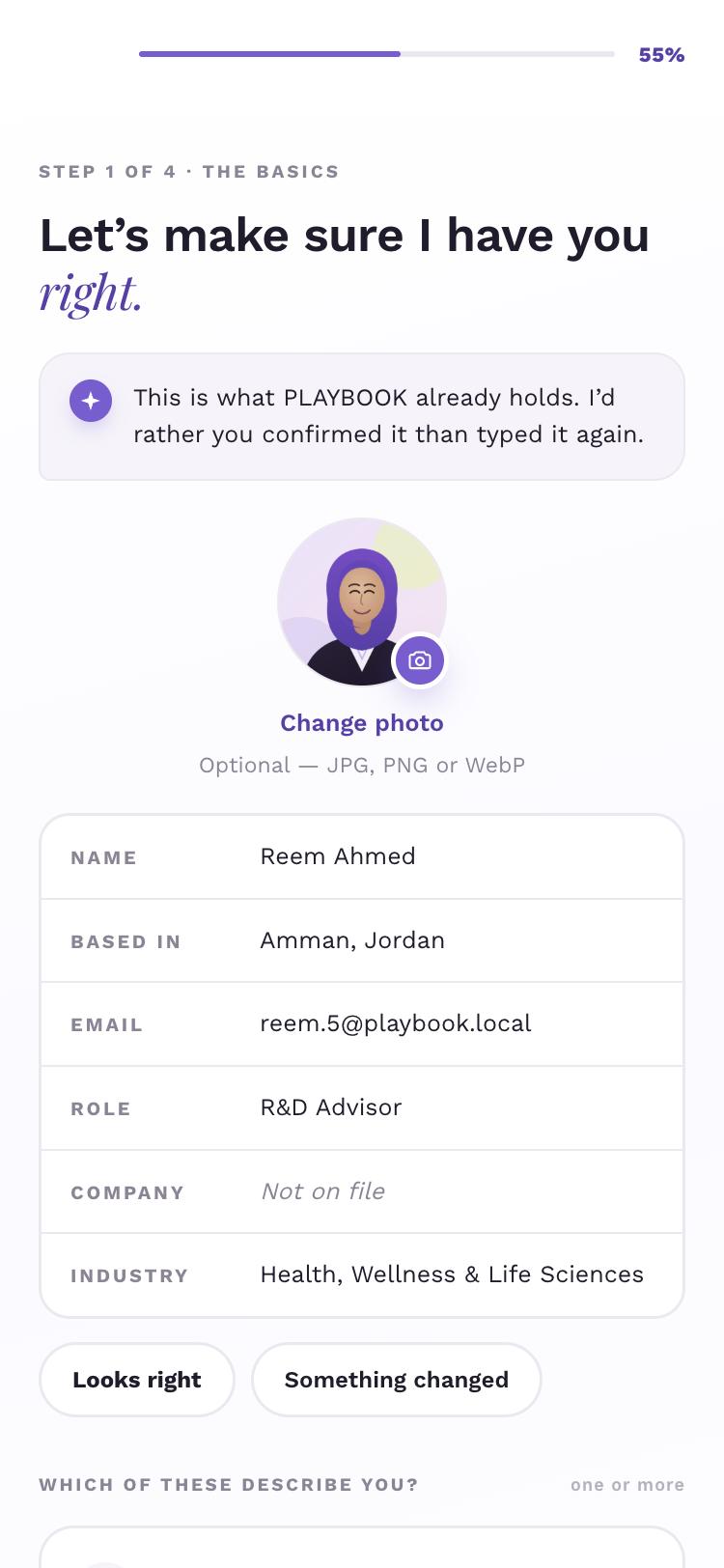
Review The basics, then tap Looks right.
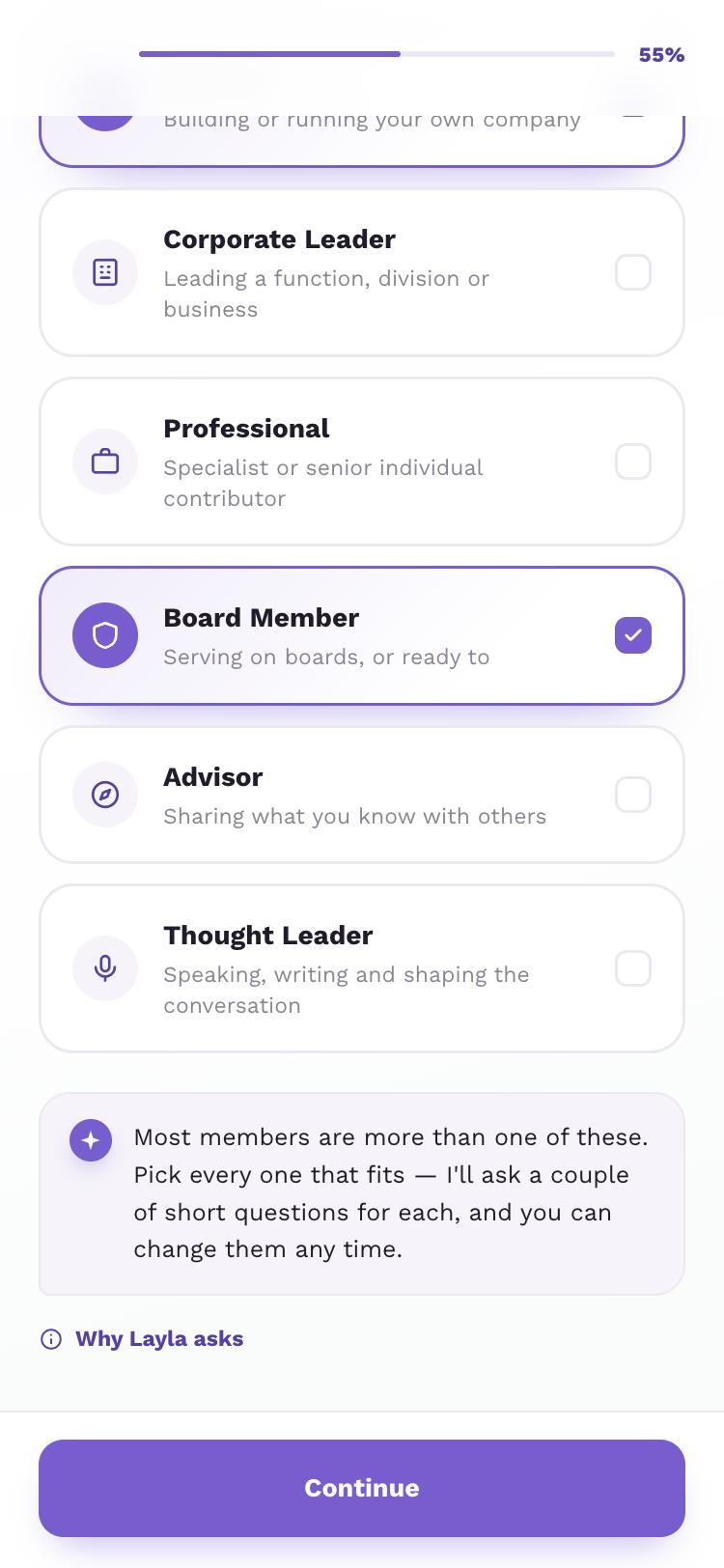
Choose every identity that fits, then tap Continue.
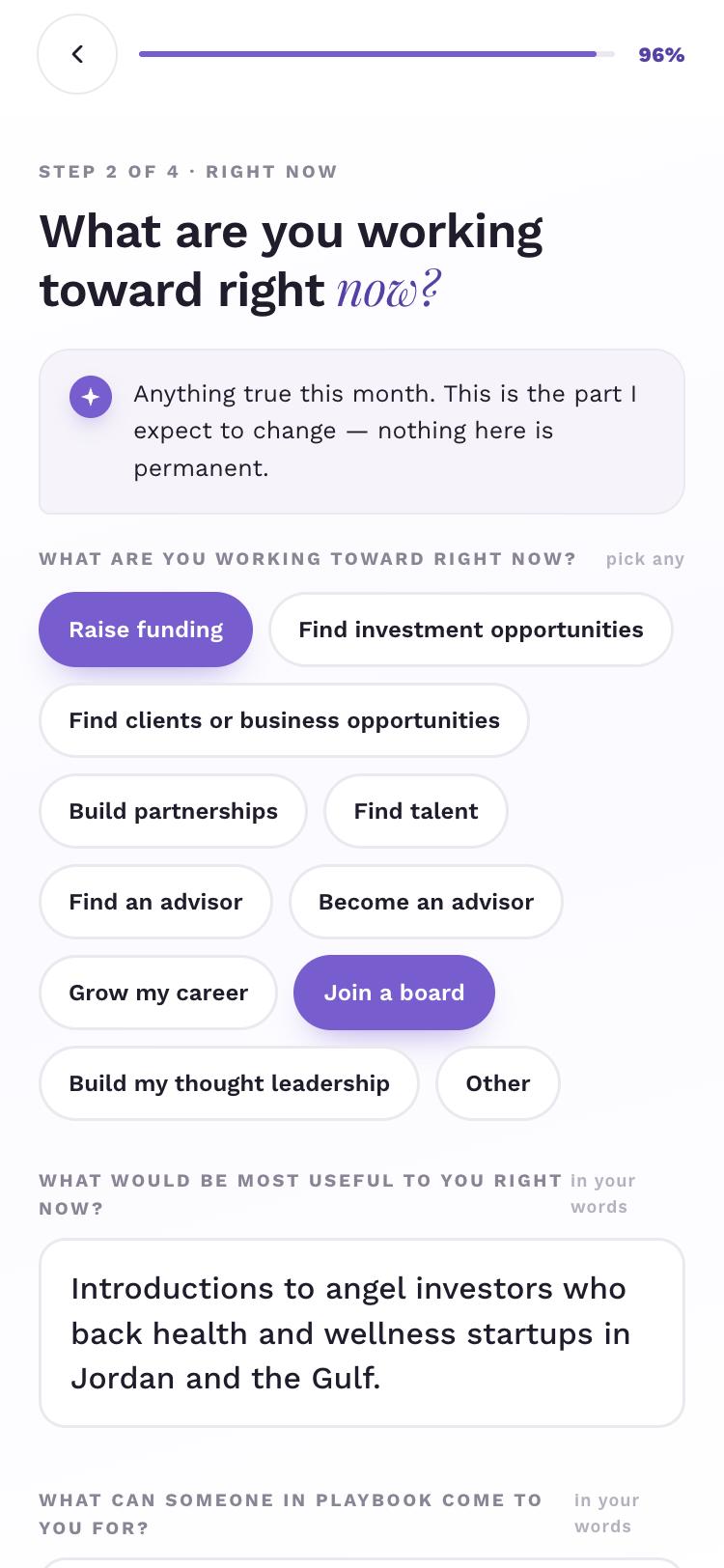
Choose what you are working toward right now, then tap Continue.
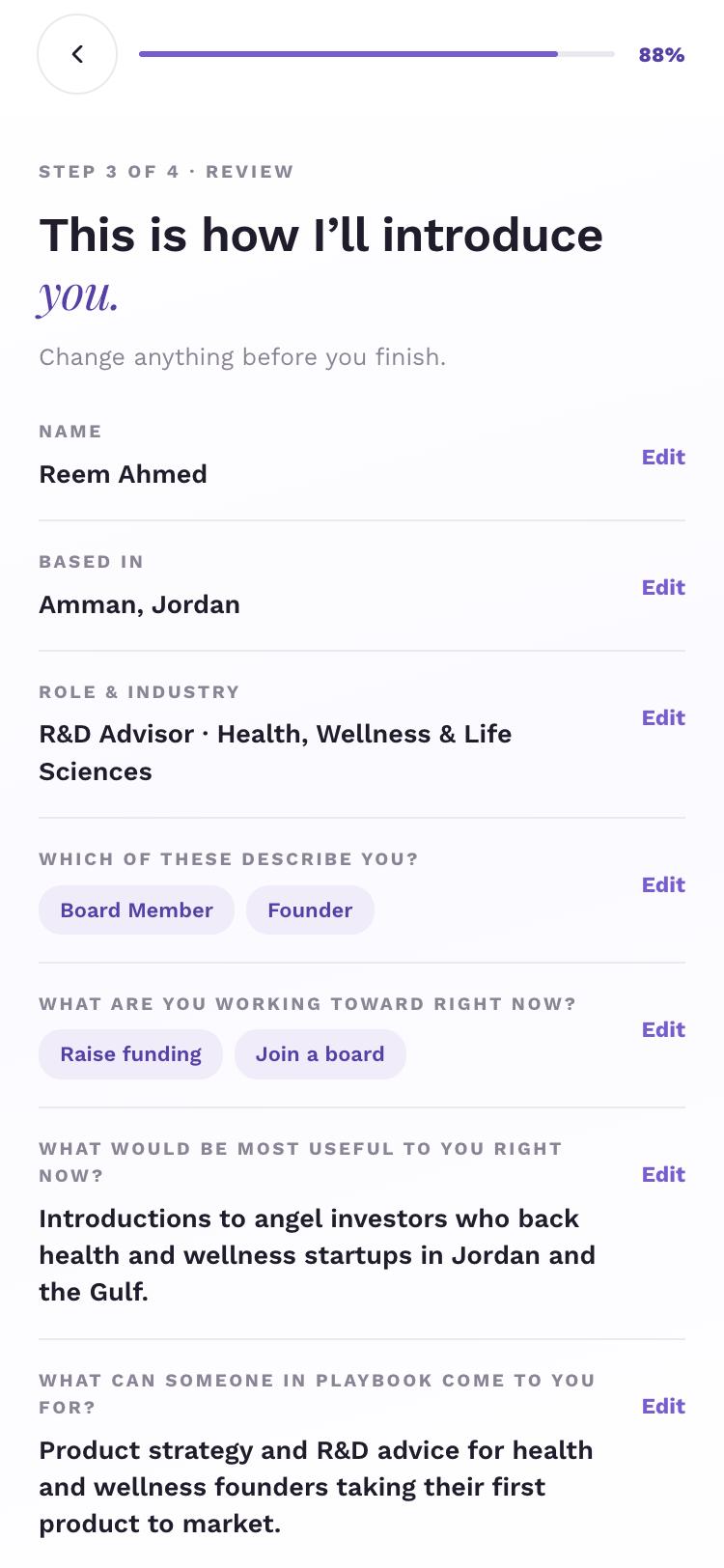
Review your answers and tap Edit to change one. When it all looks right, tap Continue.
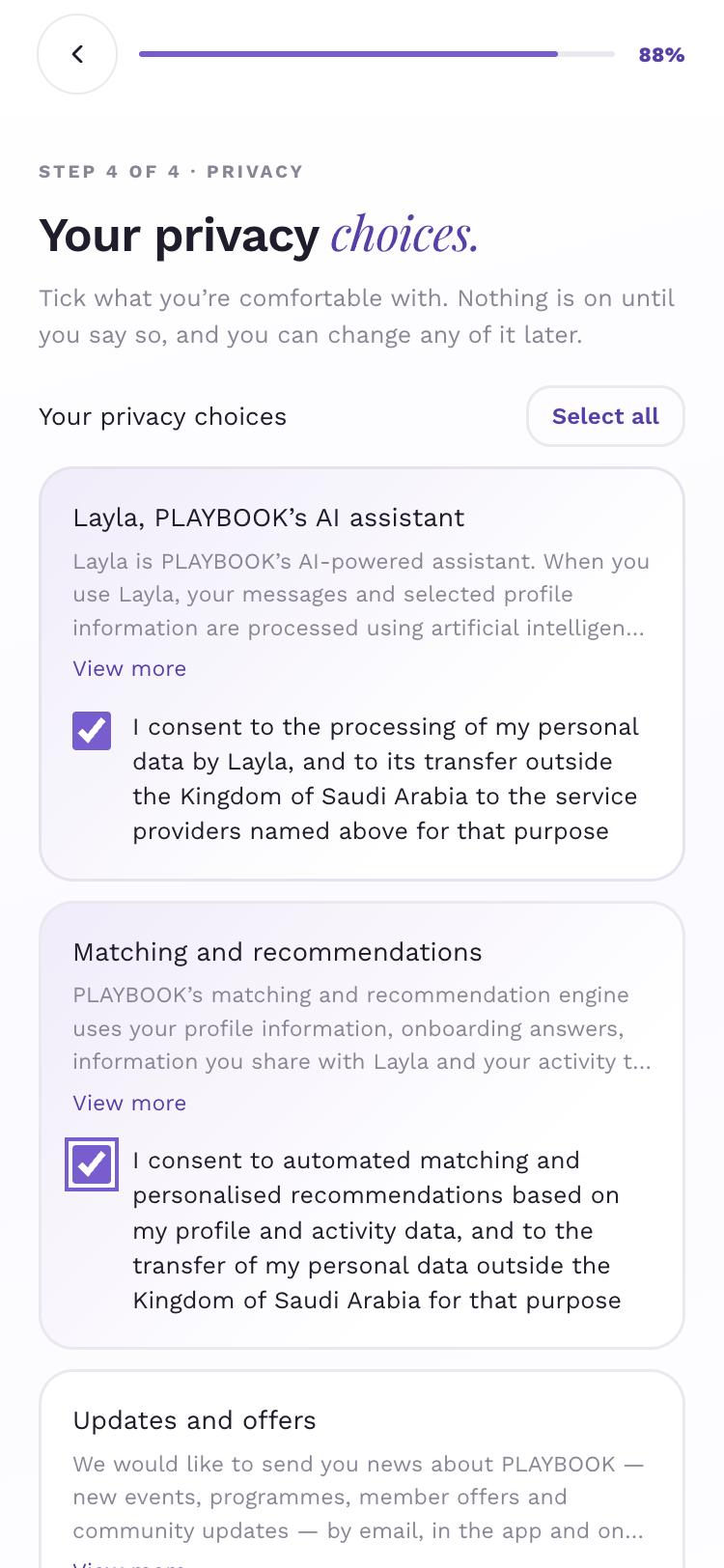
Under Your privacy choices, tick what you are comfortable with, then tap Complete my profile.
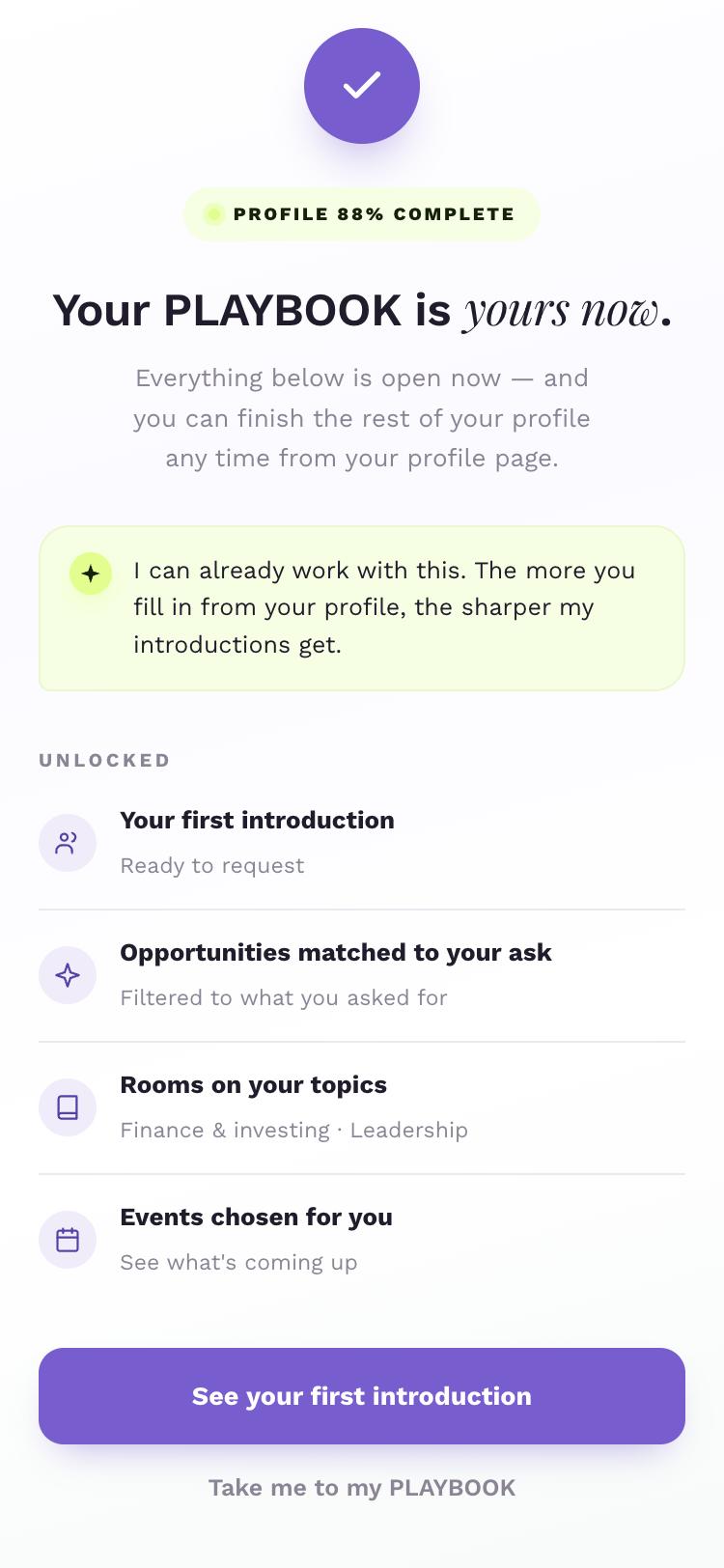
Tap See your first introduction. If you still need a membership, this button reads Choose your membership.
Step 1 of 6
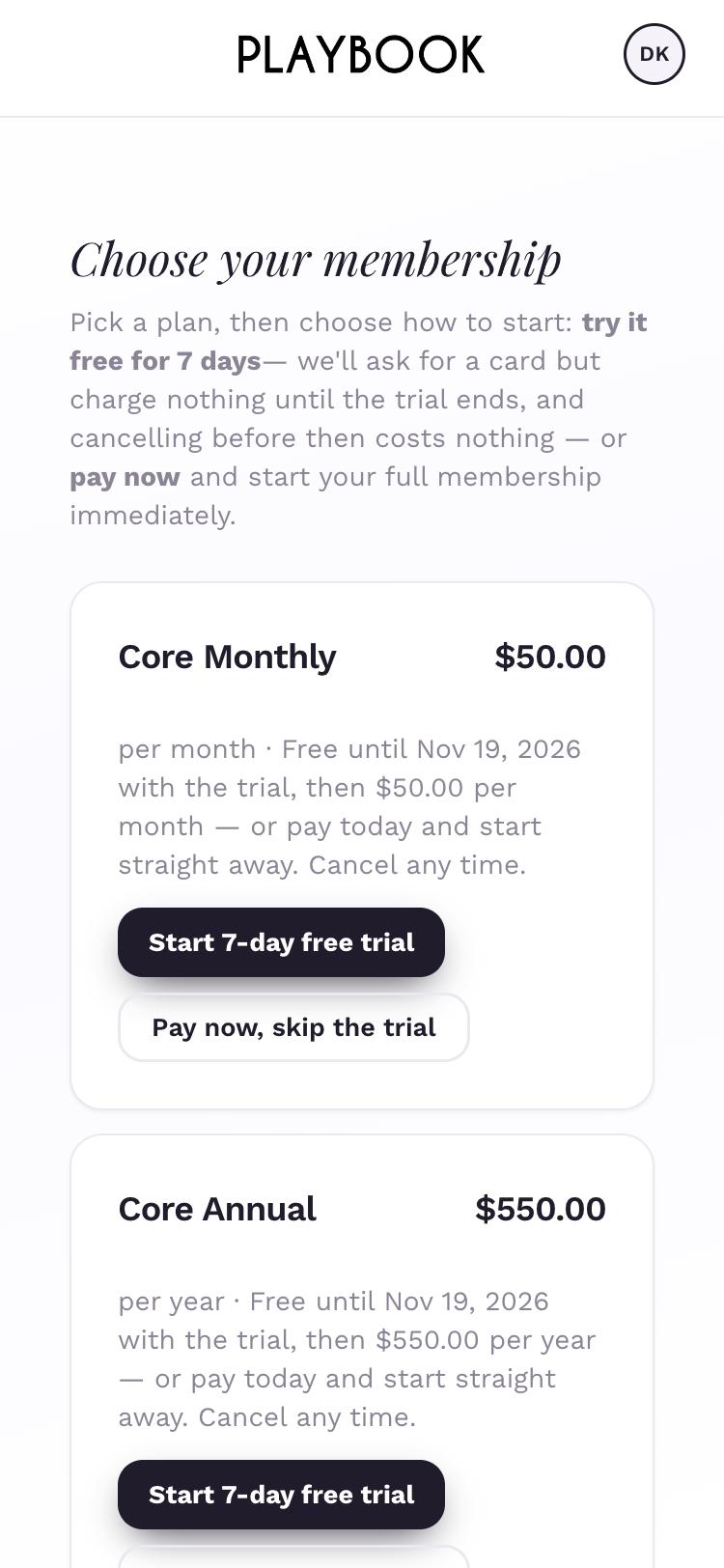
Choose Core Monthly or Core Annual, then pick how you want to start.
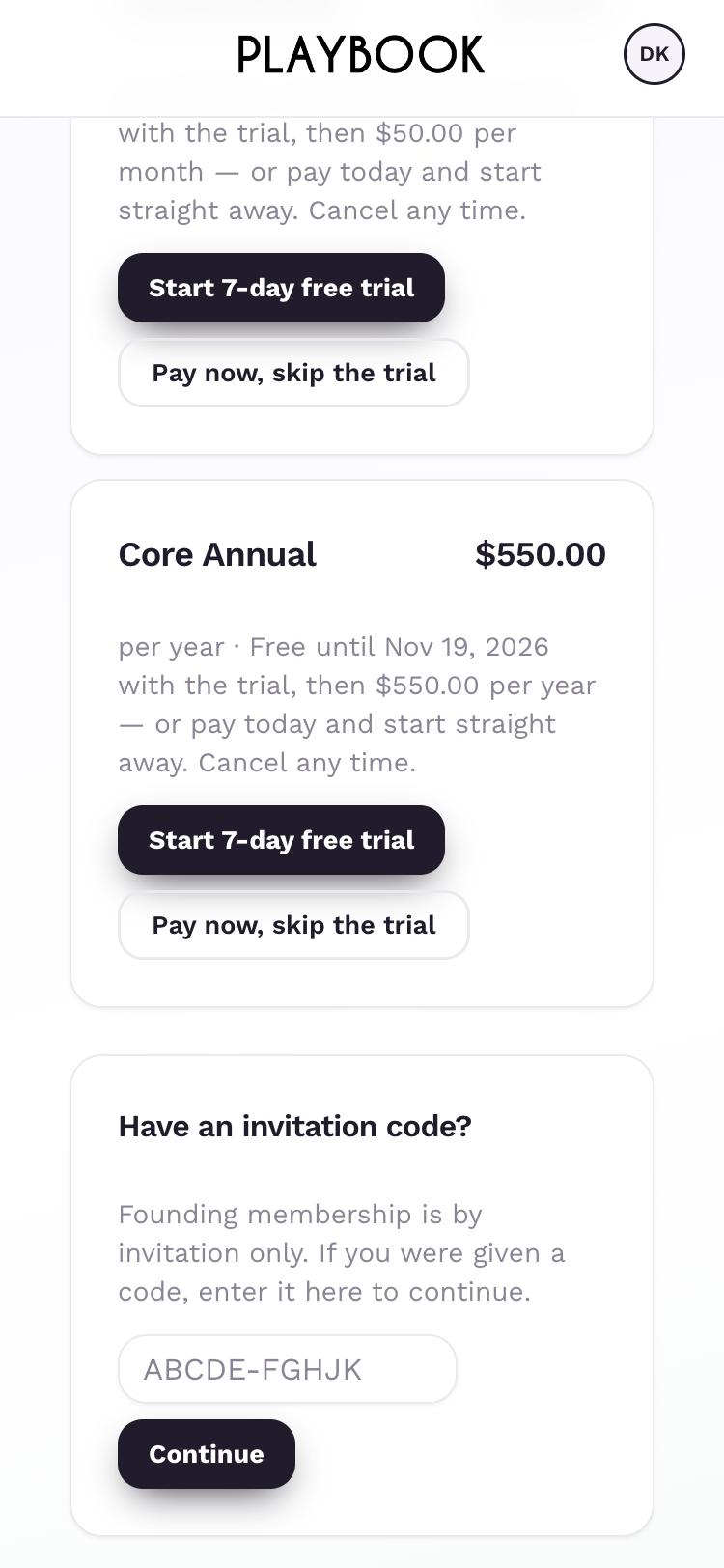
Have an invitation instead? Founding membership is by invitation only: under Have an invitation code?, enter the code, then tap Continue.
Step 1 of 2
Layla
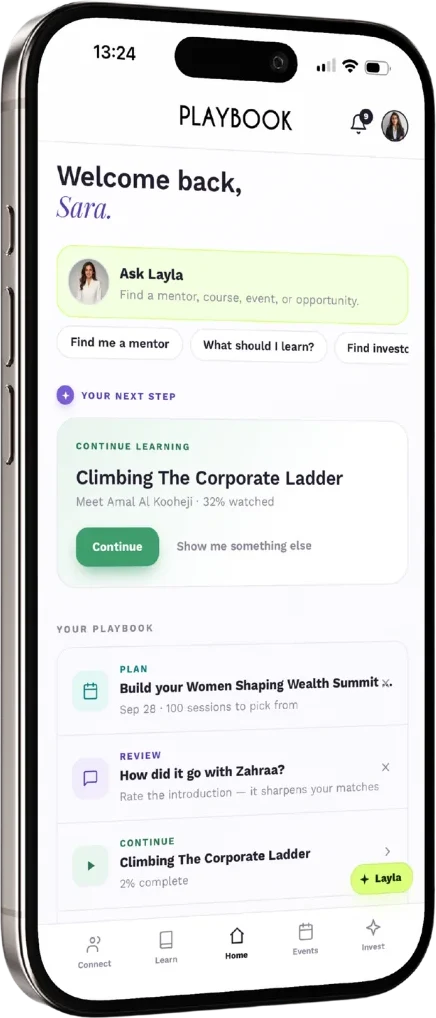
Meet Layla.
Your AI guide. A shortcut, never the only way.
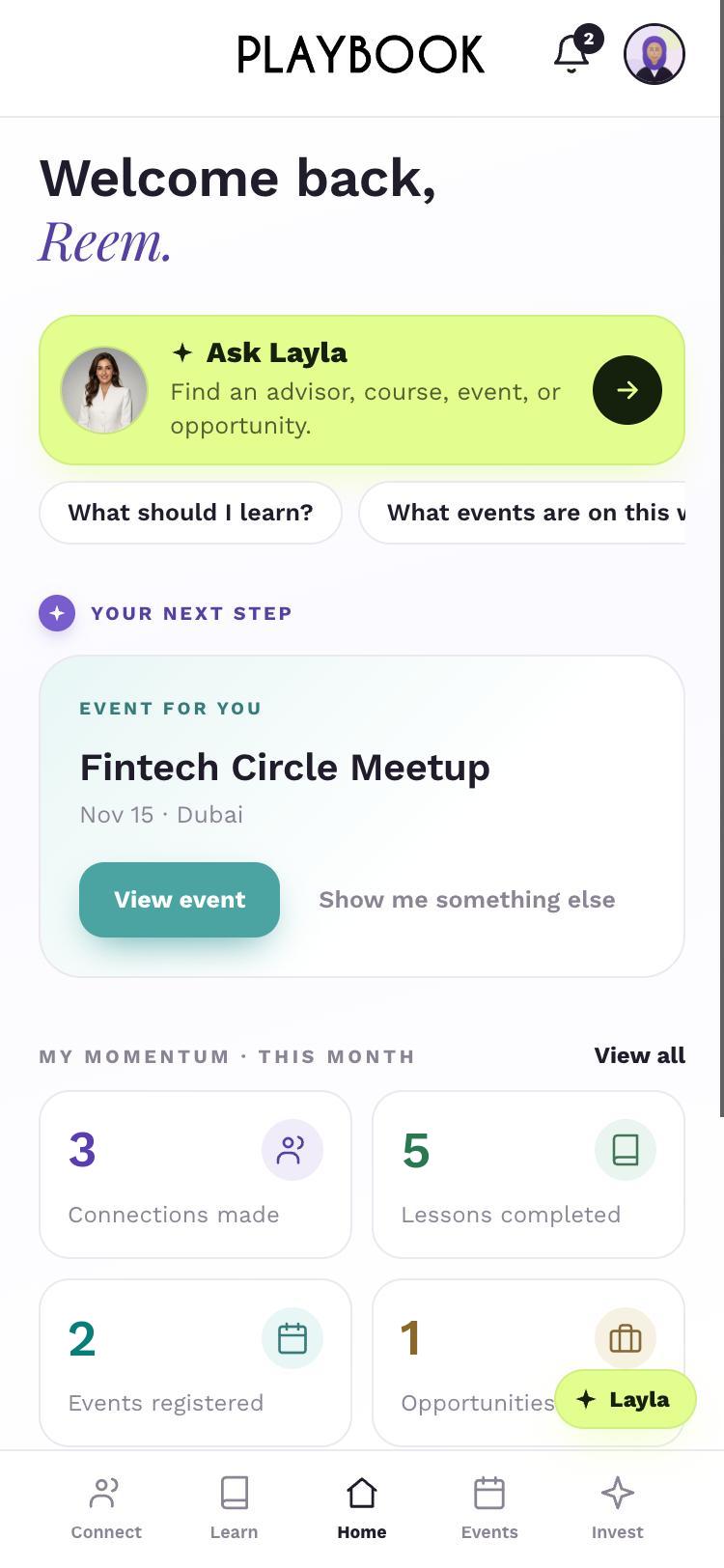
Tap Ask Layla on Home. You can also tap Layla on any screen.
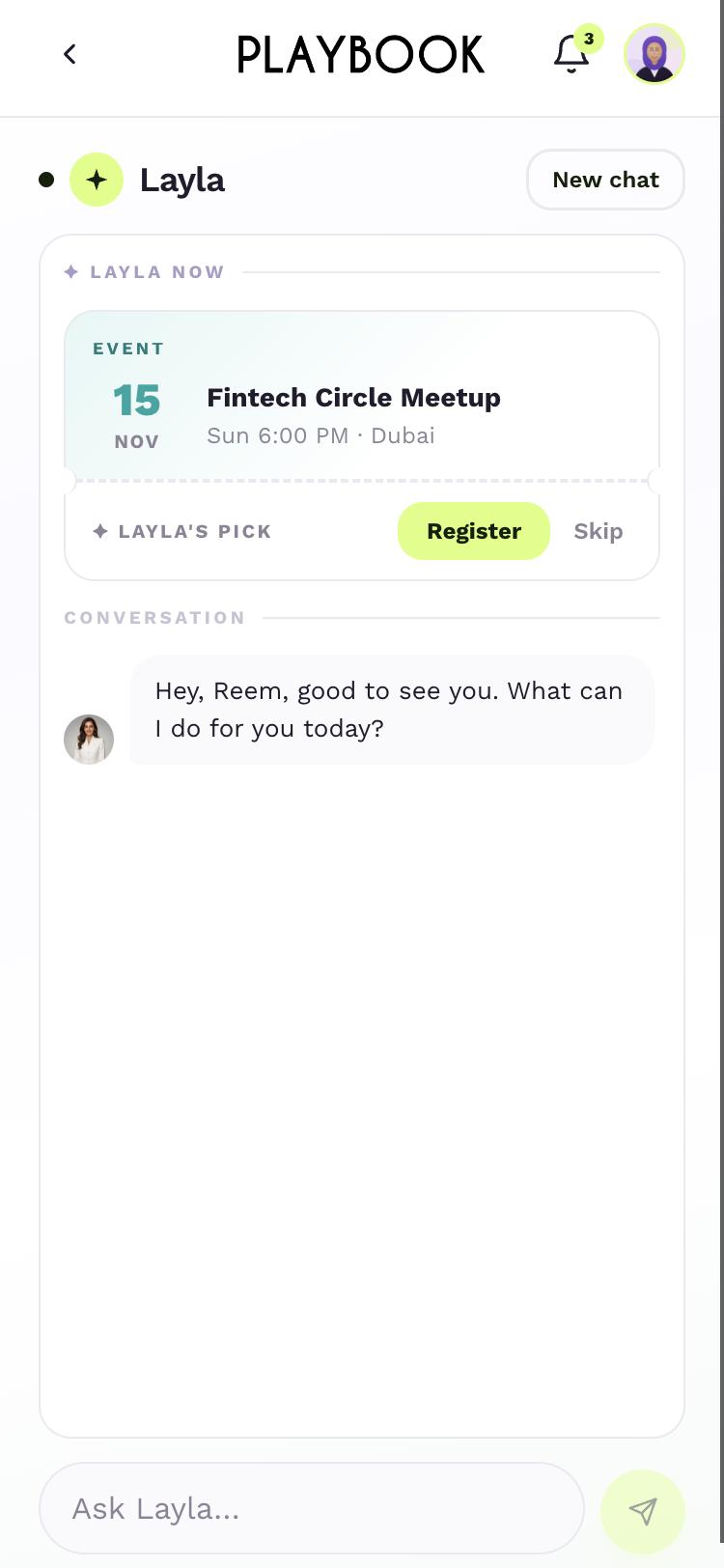
Type your question in Ask Layla…, then send it.
On a ✦ Layla’s pick card, tap Register or Skip.
Step 1 of 3
Tap your photo.
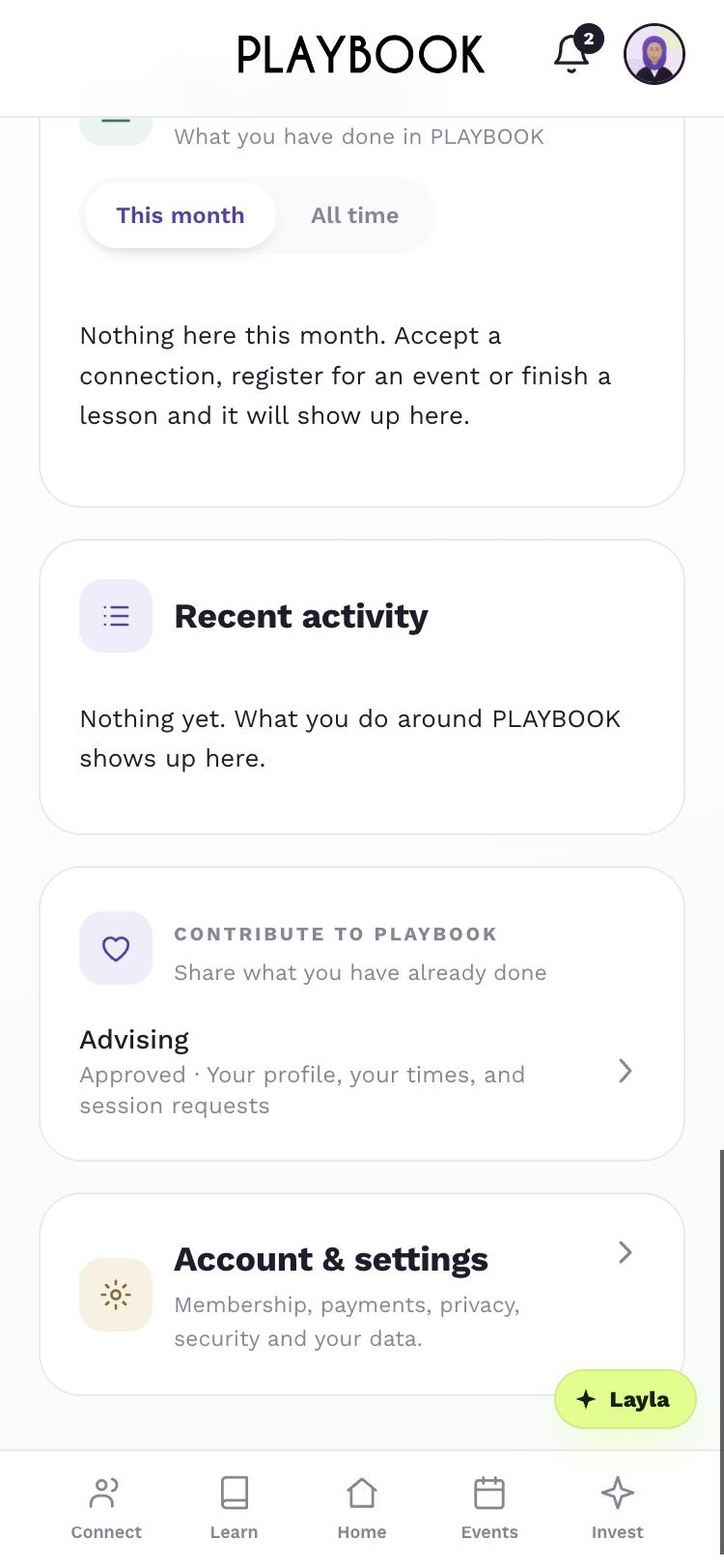
Open Account & settings.
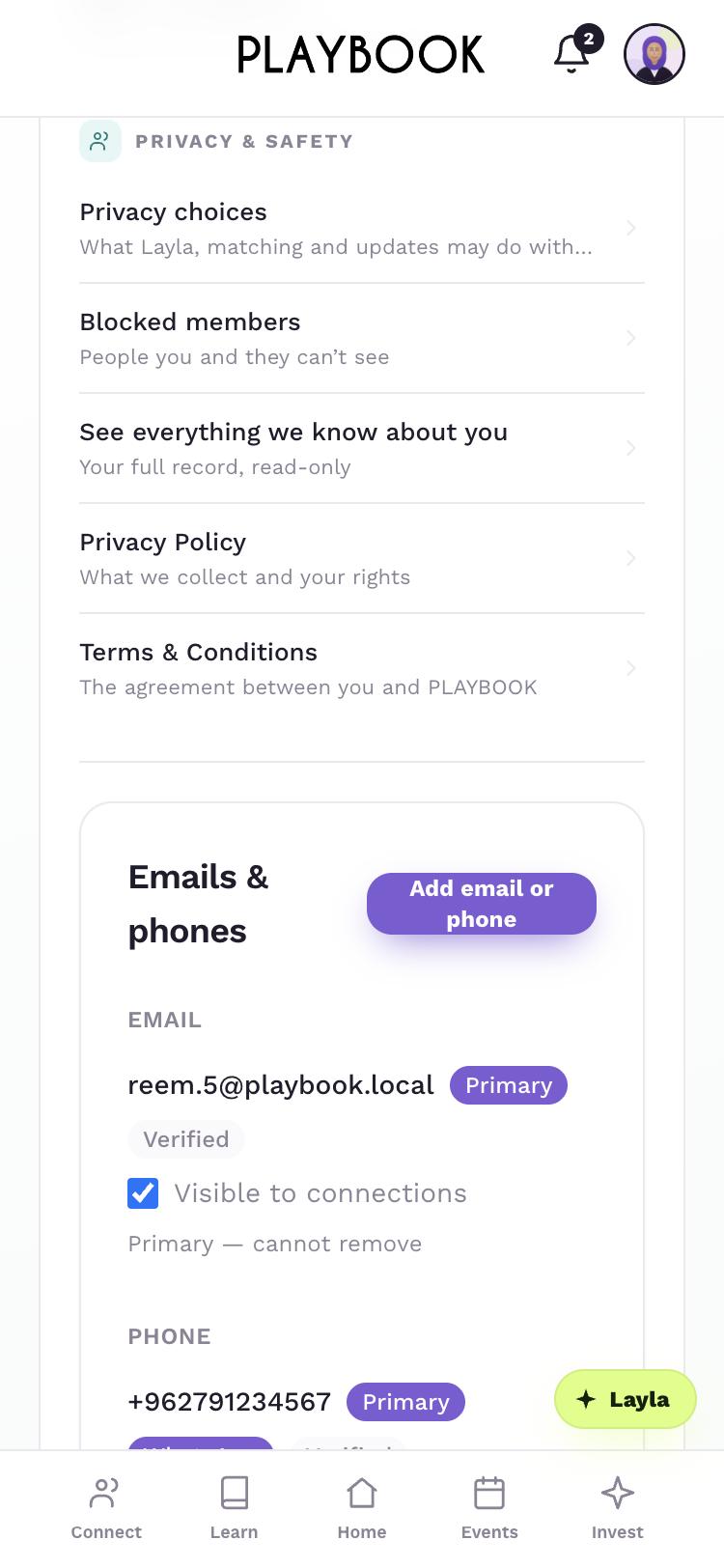
Tap Privacy choices.
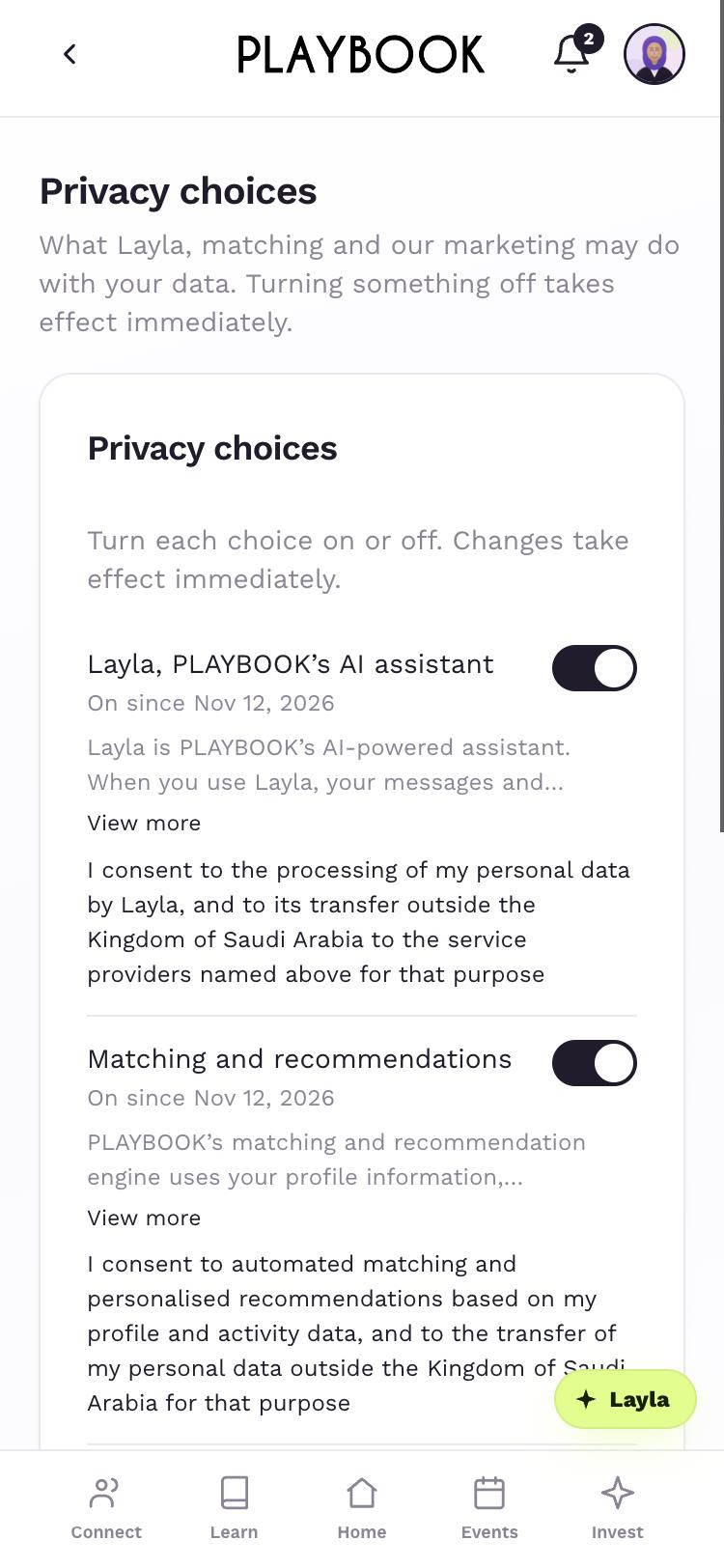
Turn on Layla, PLAYBOOK’s AI assistant.
Turn on Matching and recommendations if you want introductions.
Step 1 of 5
Tap your photo.
Open Account & settings.
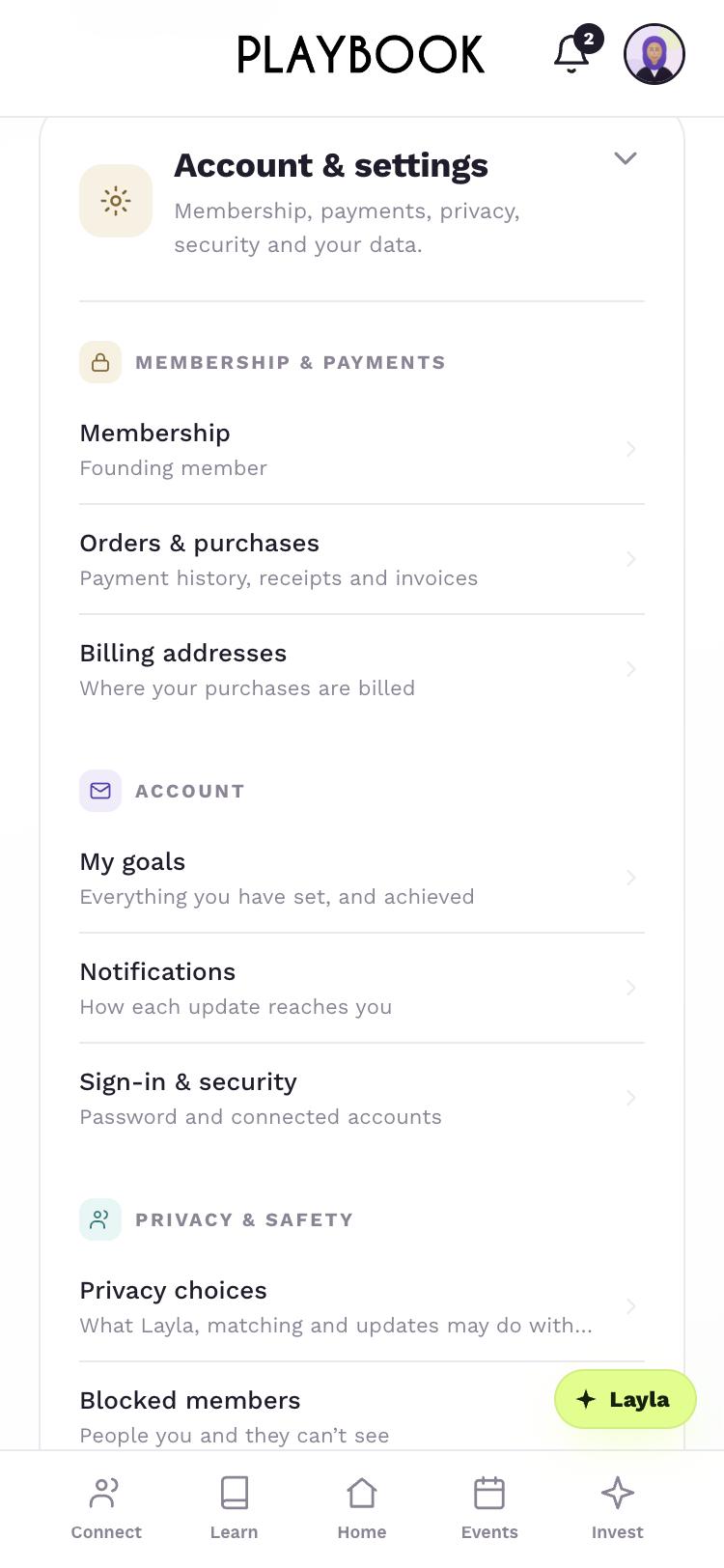
Tap My goals.
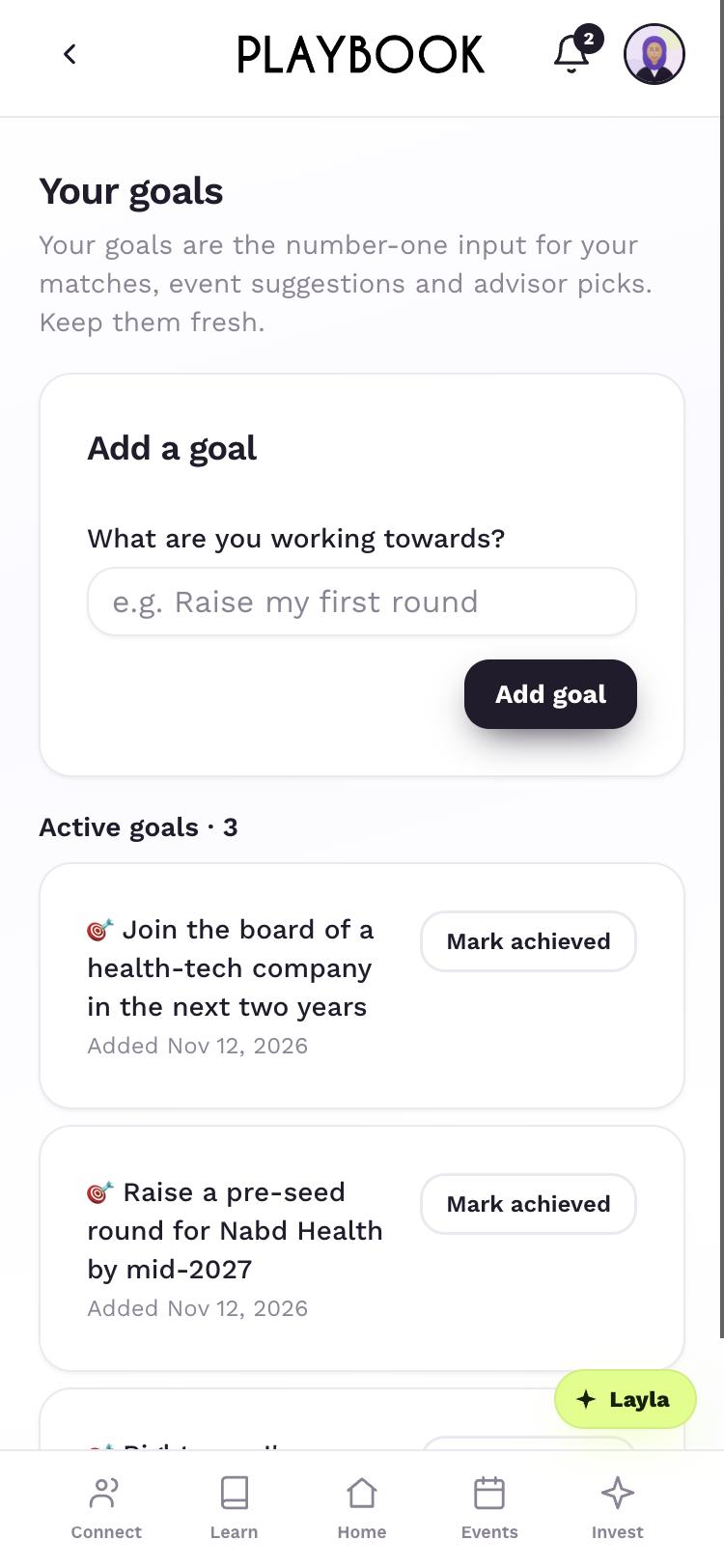
Write your goal, then tap Add goal.
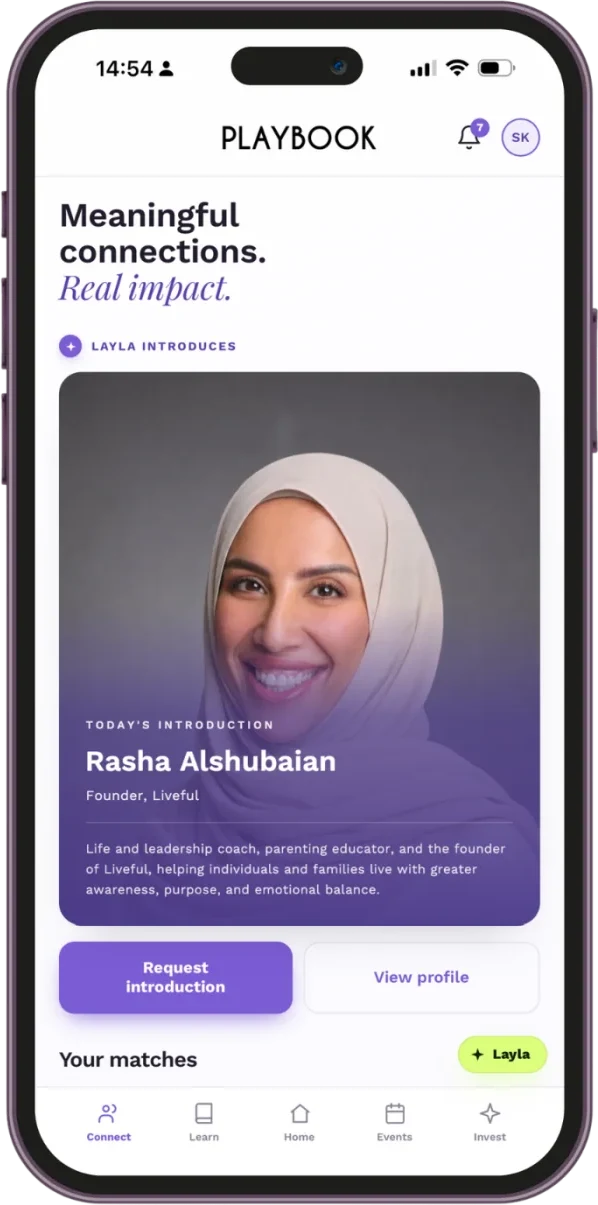
From Home, tap Connect.
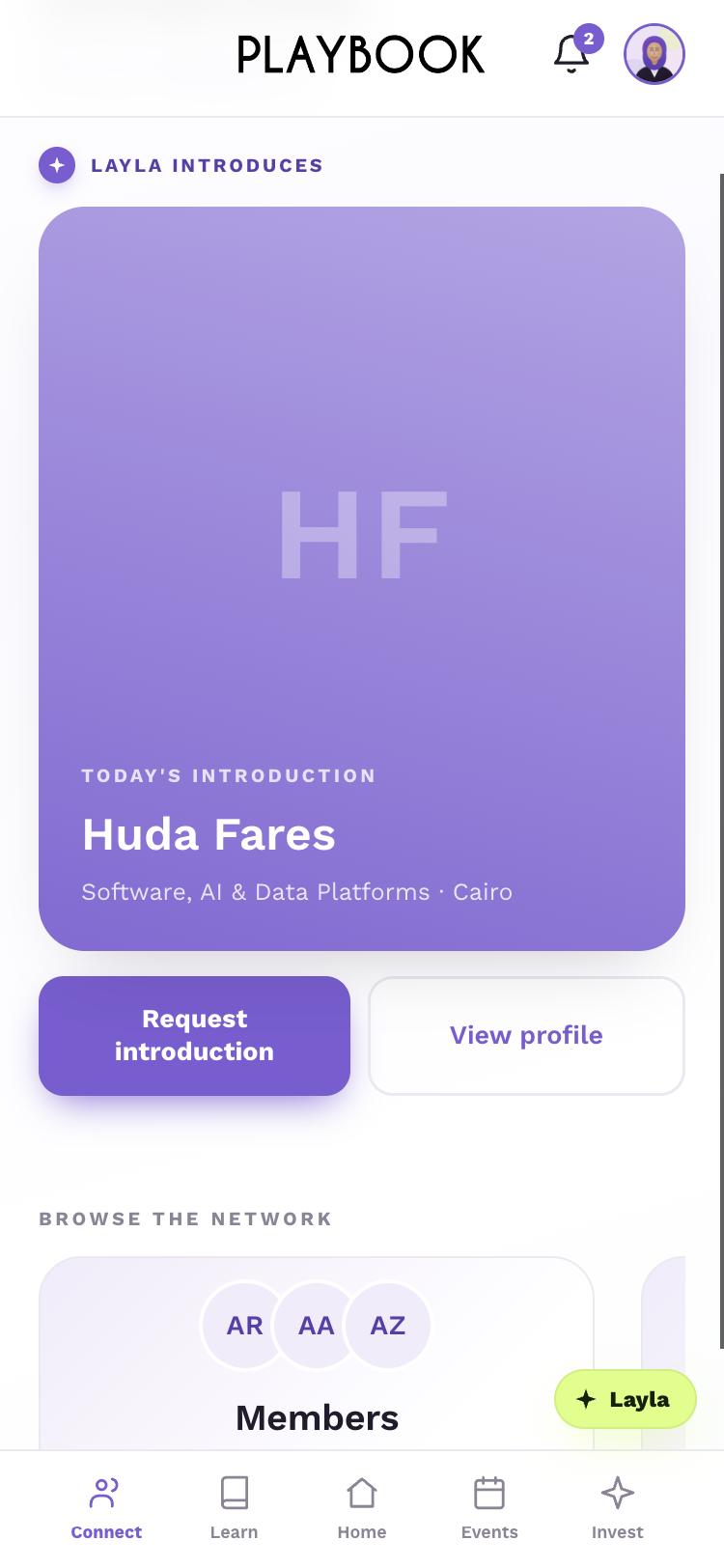
Tap Request introduction, add a note, then tap Send request.
Step 1 of 6
Connect
Connect with members.
Find people yourself, or take Layla’s introductions.
Tap Connect.
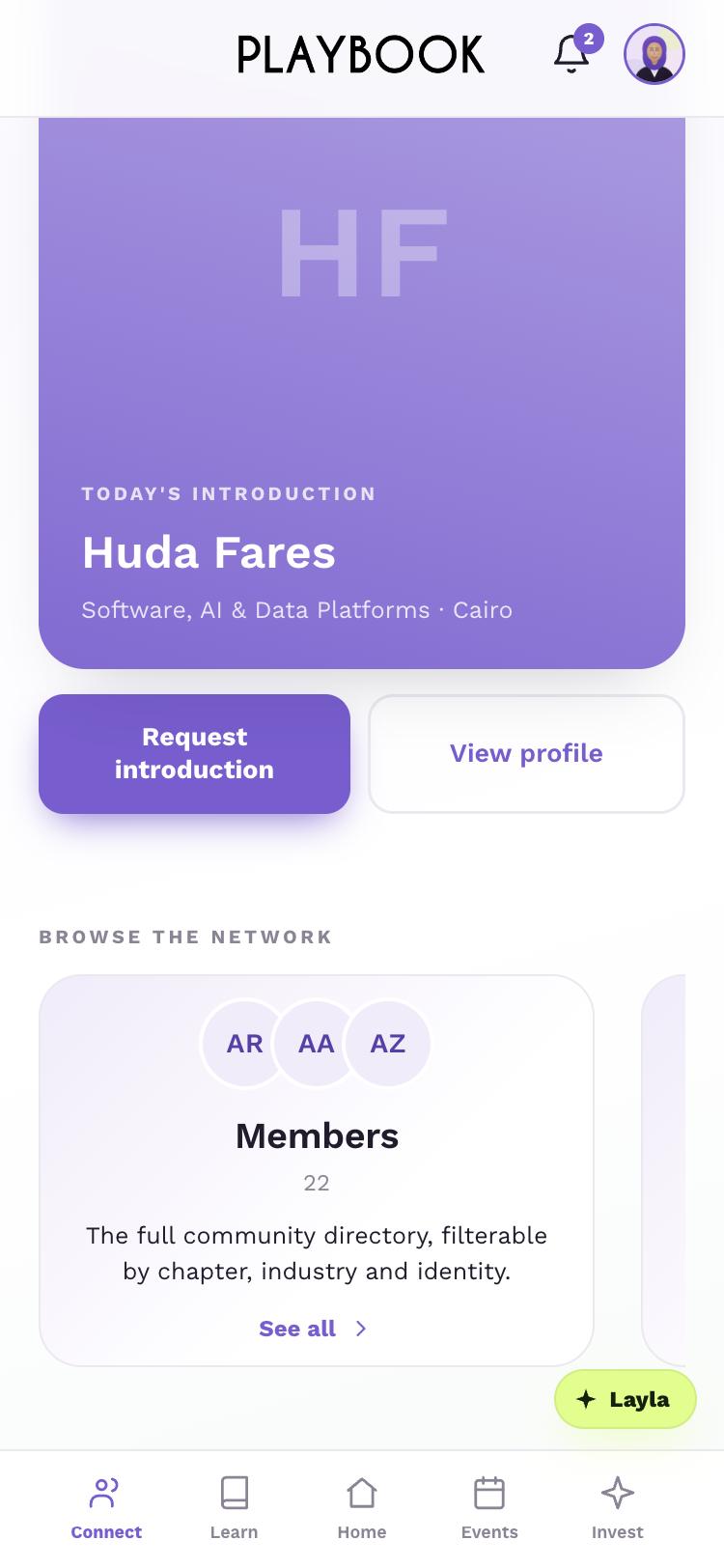
Under Browse the network, tap Members.
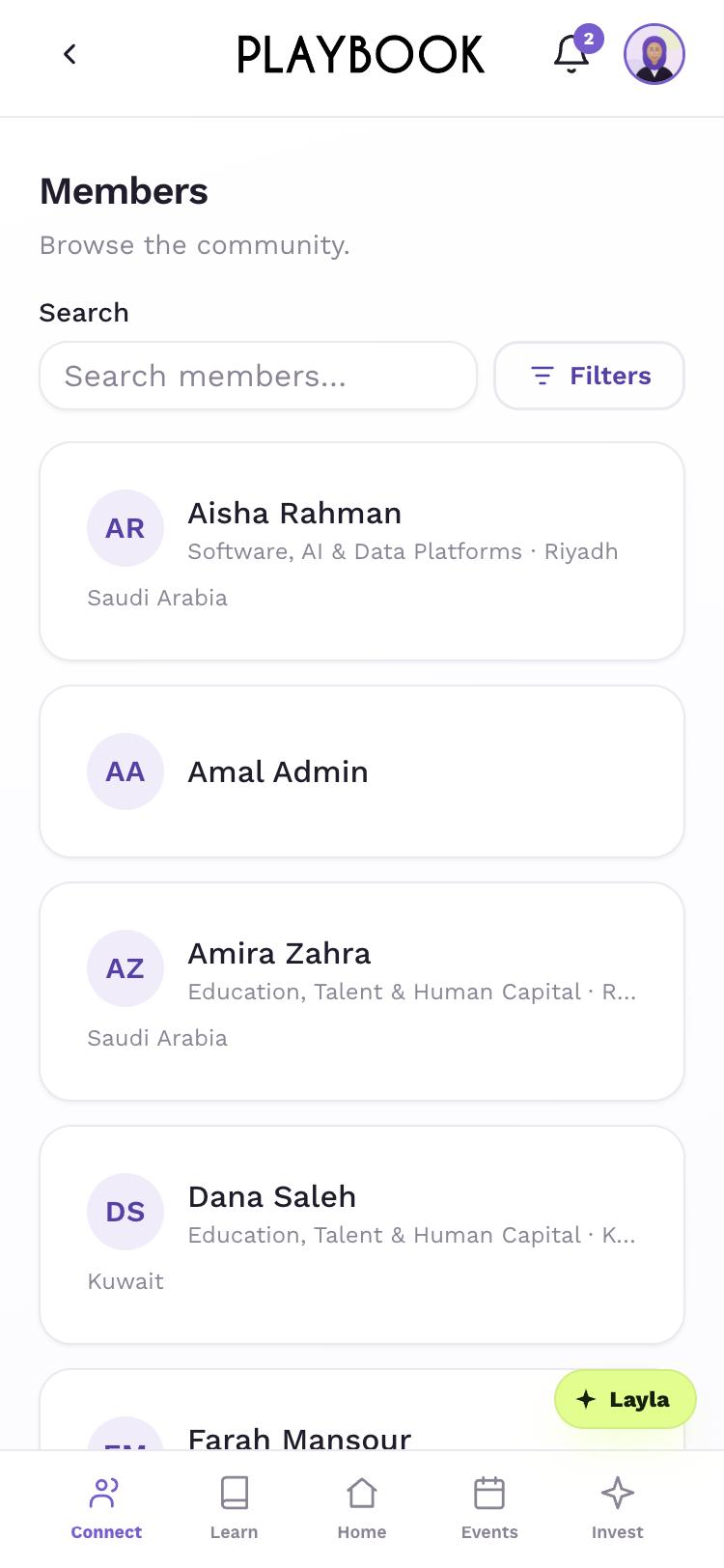
Use Search members… or tap Filters.
Step 1 of 3
In Members, open a member.
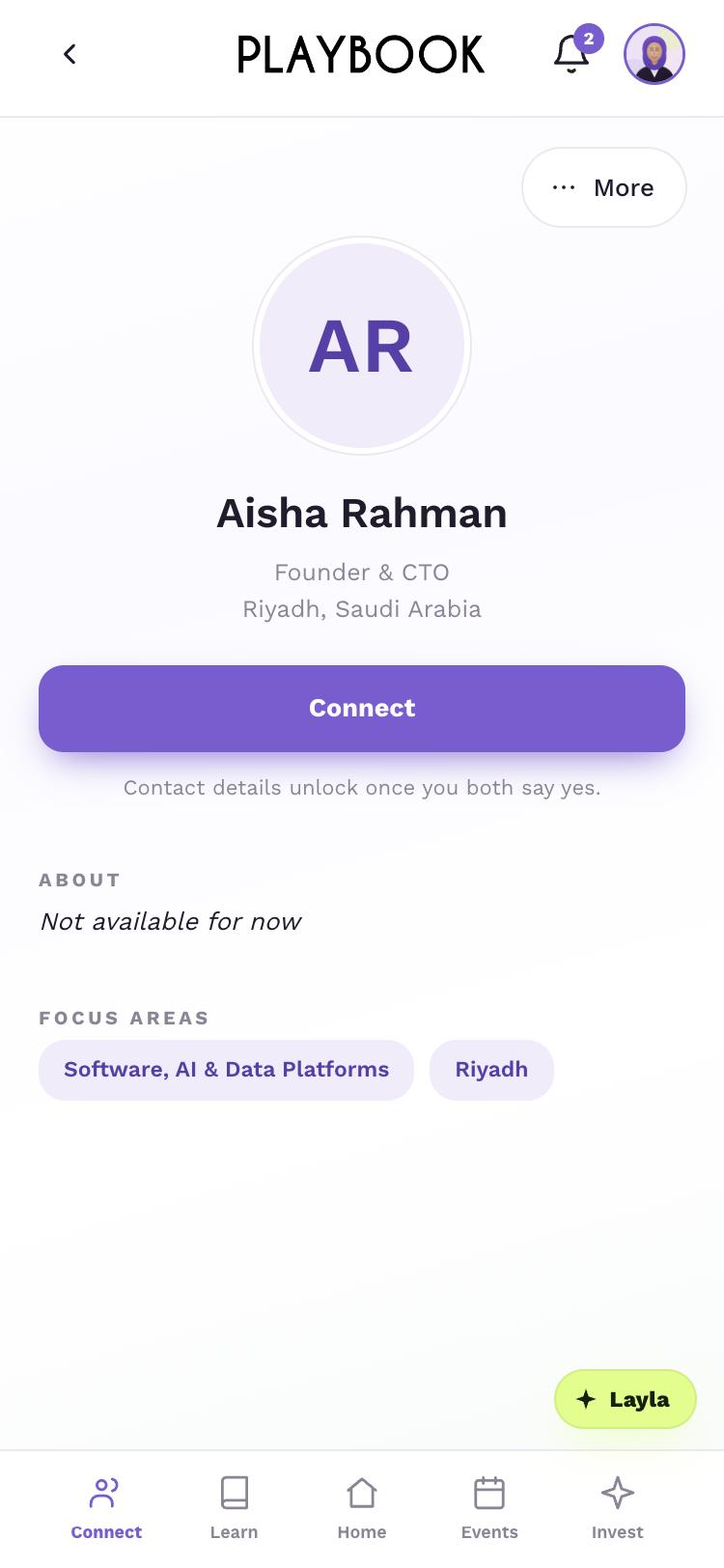
Tap Connect.
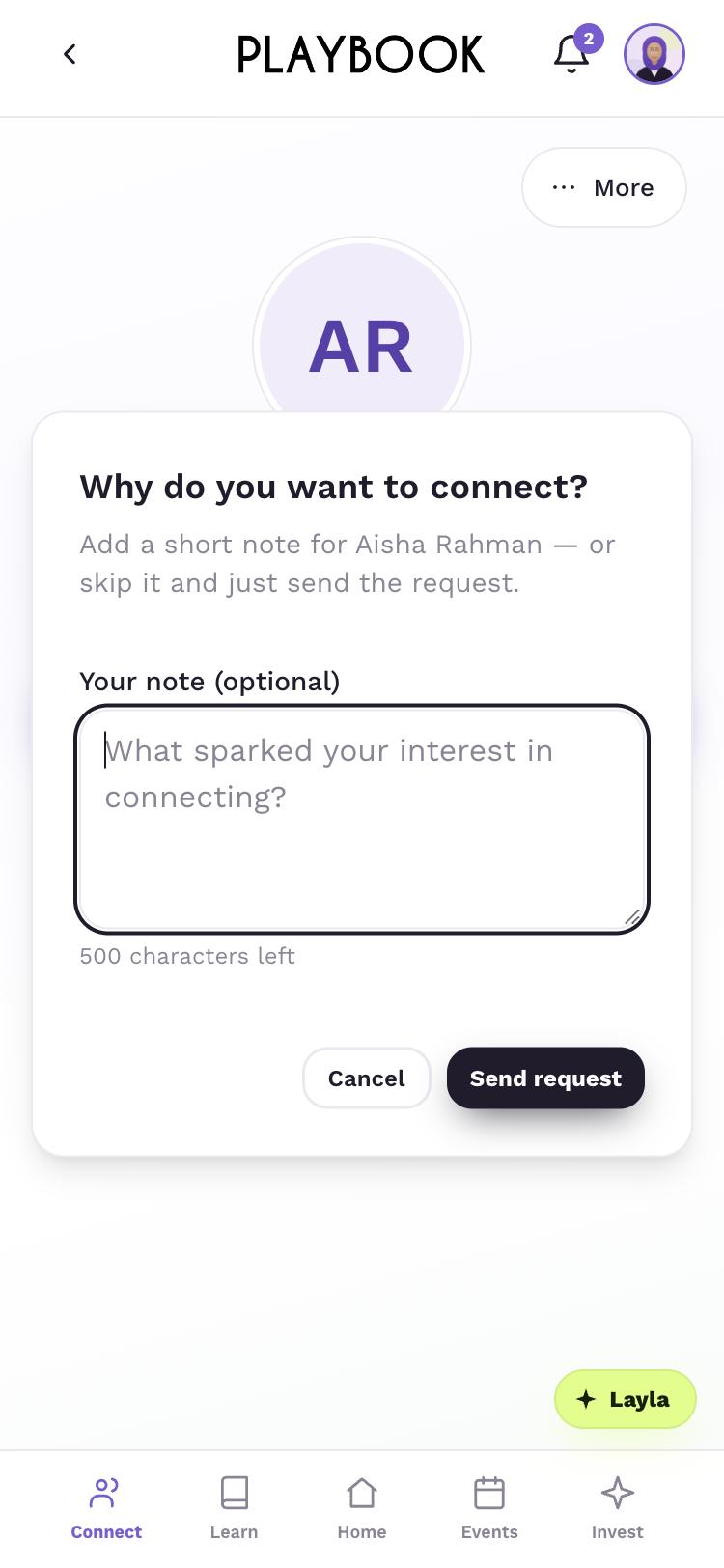
Add a note, then tap Send request.
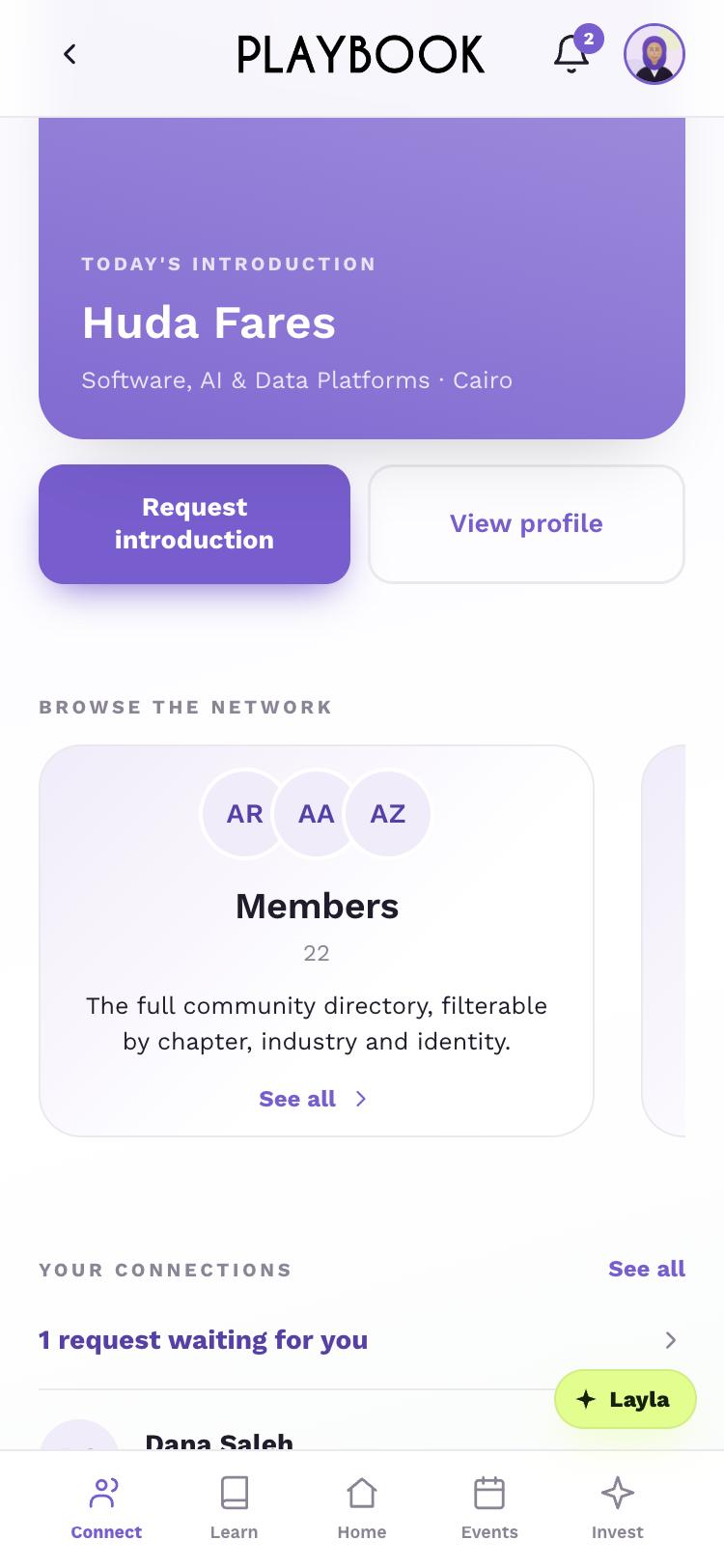
From Connect, under Your connections, tap See all.
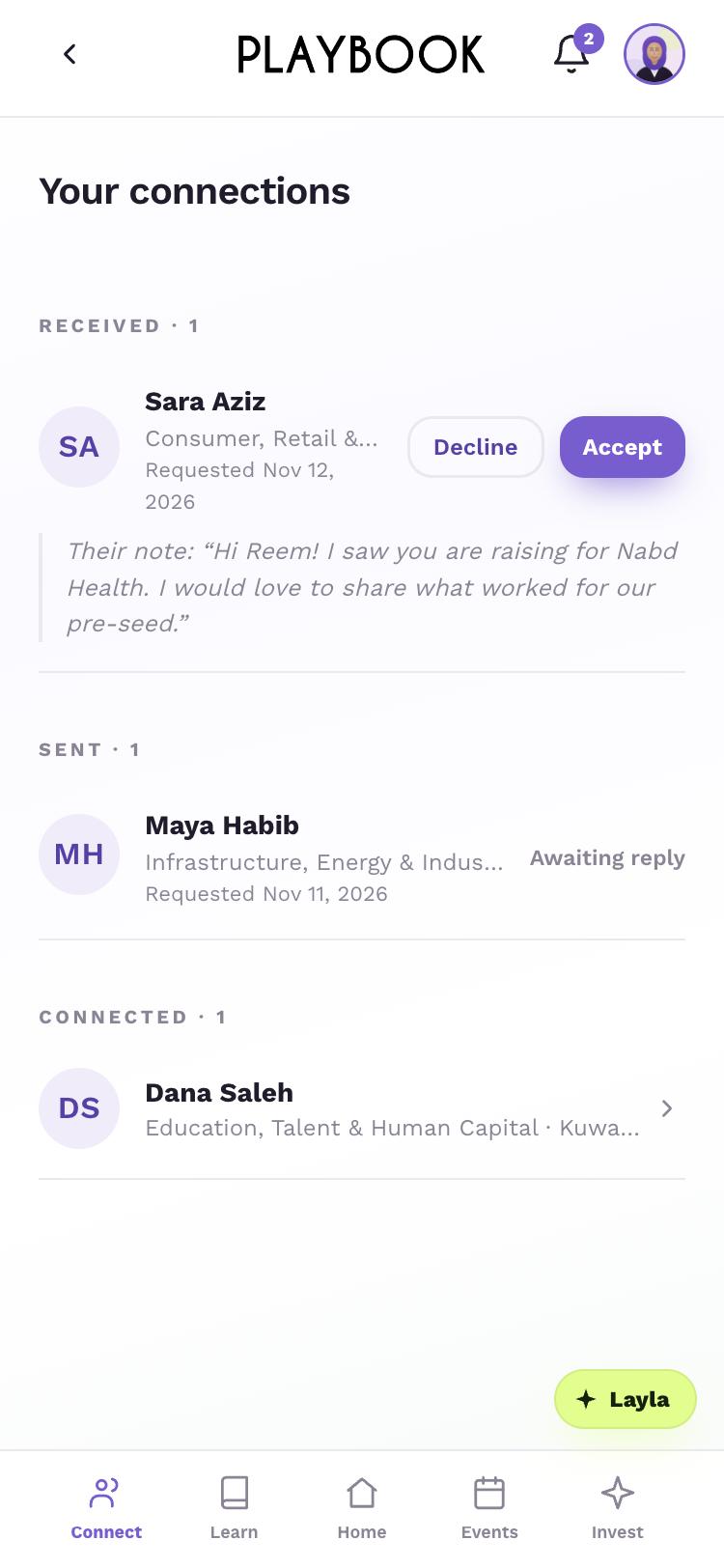
Tap Accept or Decline.
Step 1 of 5
Tap More.
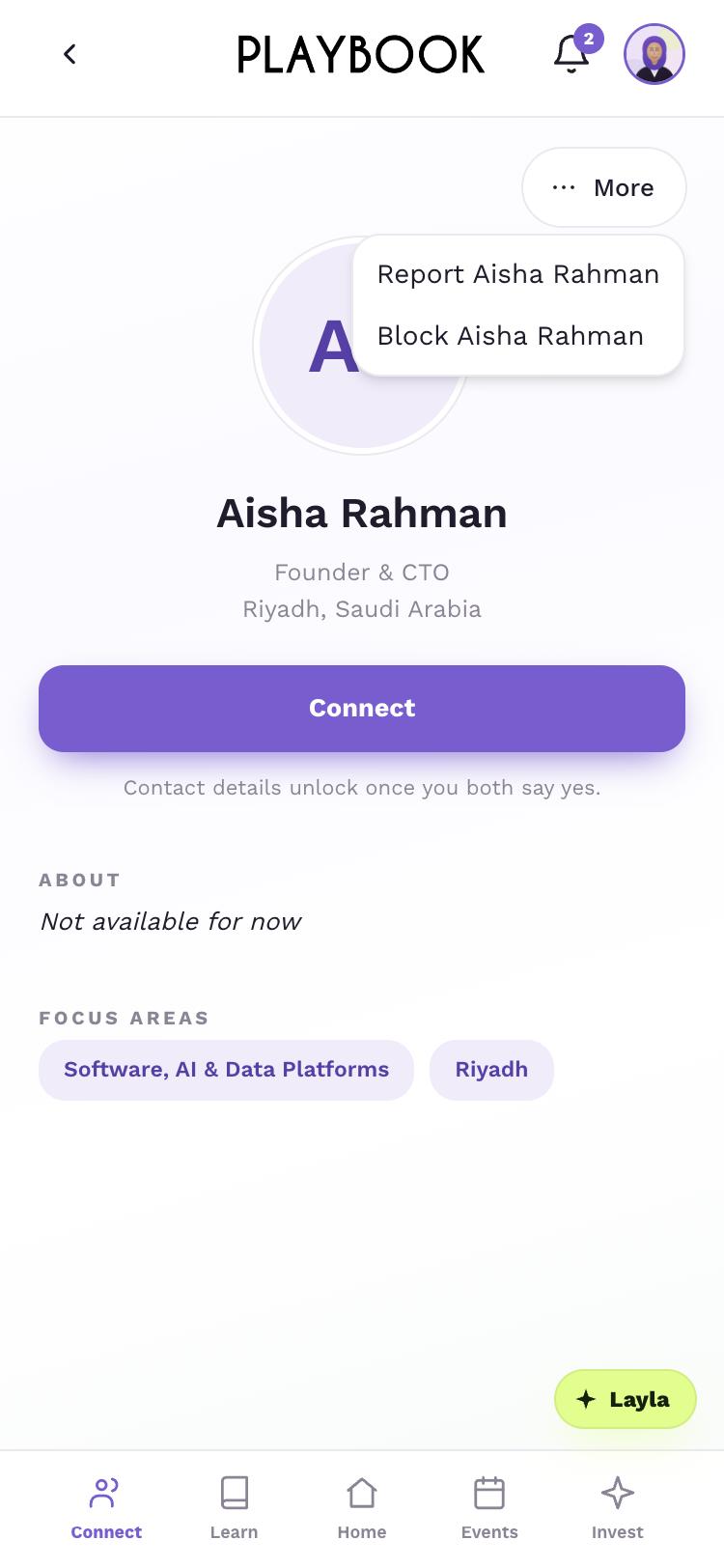
Choose Report or Block, followed by the member’s name.
Step 1 of 2
Learn
Learn with purpose.
Masterclasses, circles, the library and advisors.
Tap Learn.
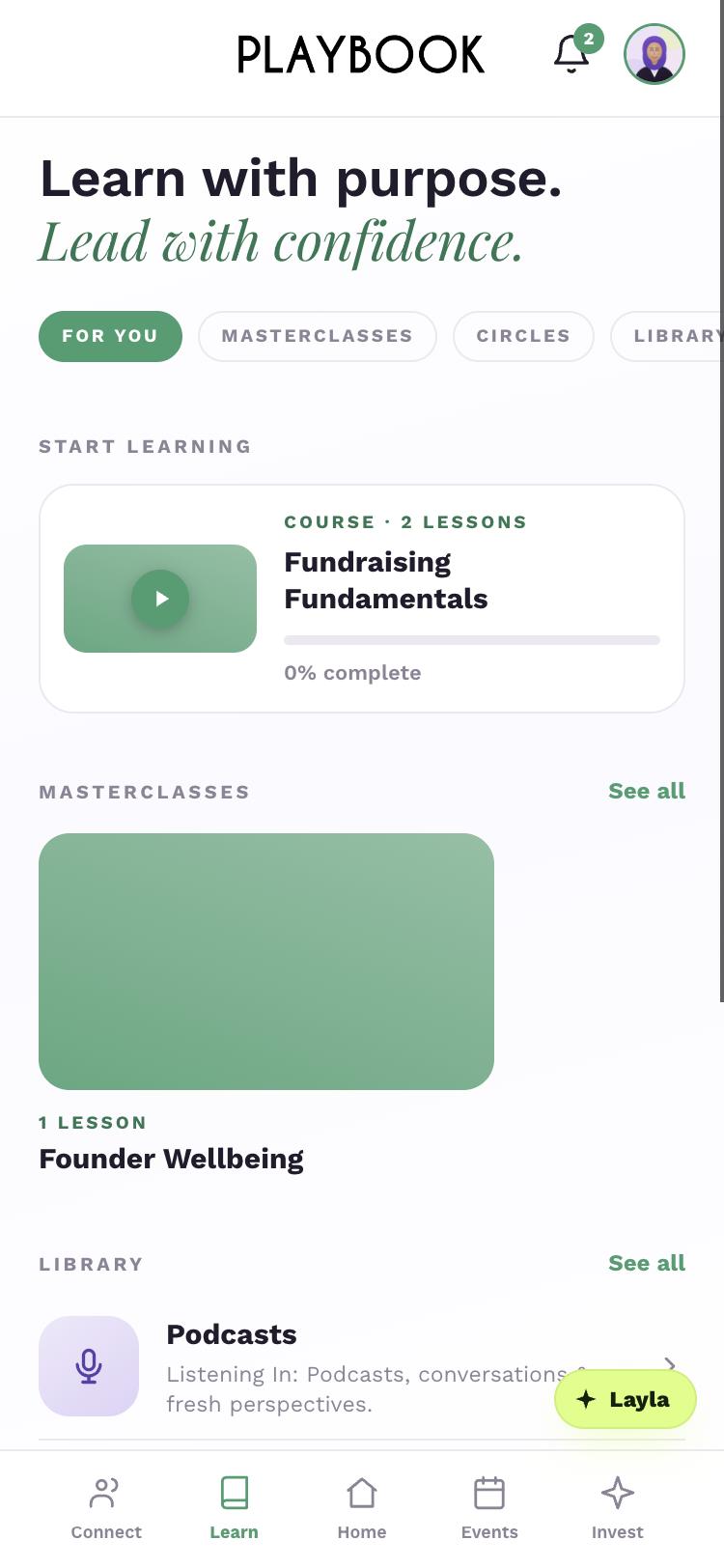
Browse For you, Masterclasses, Circles, Library or Advisors.
Step 1 of 2
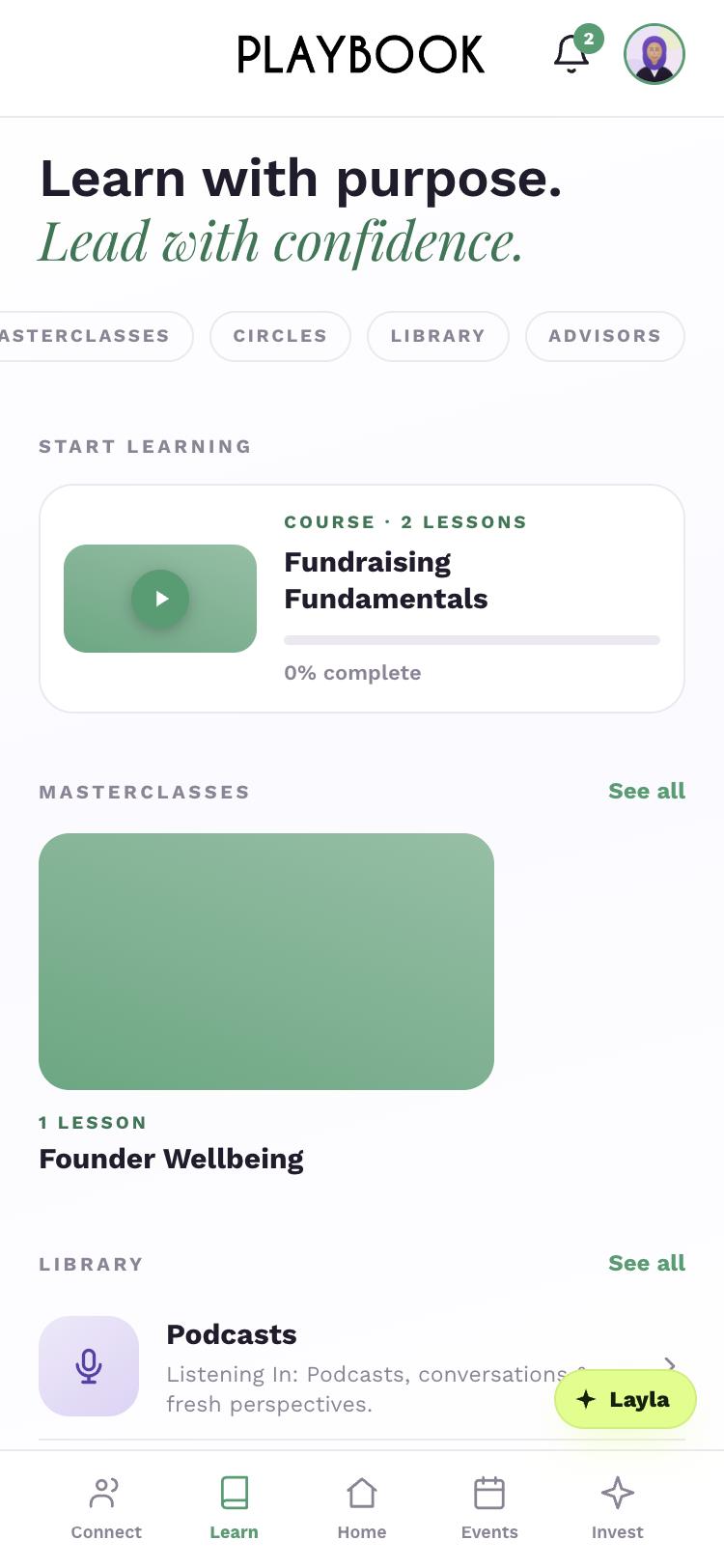
Tap Advisors.
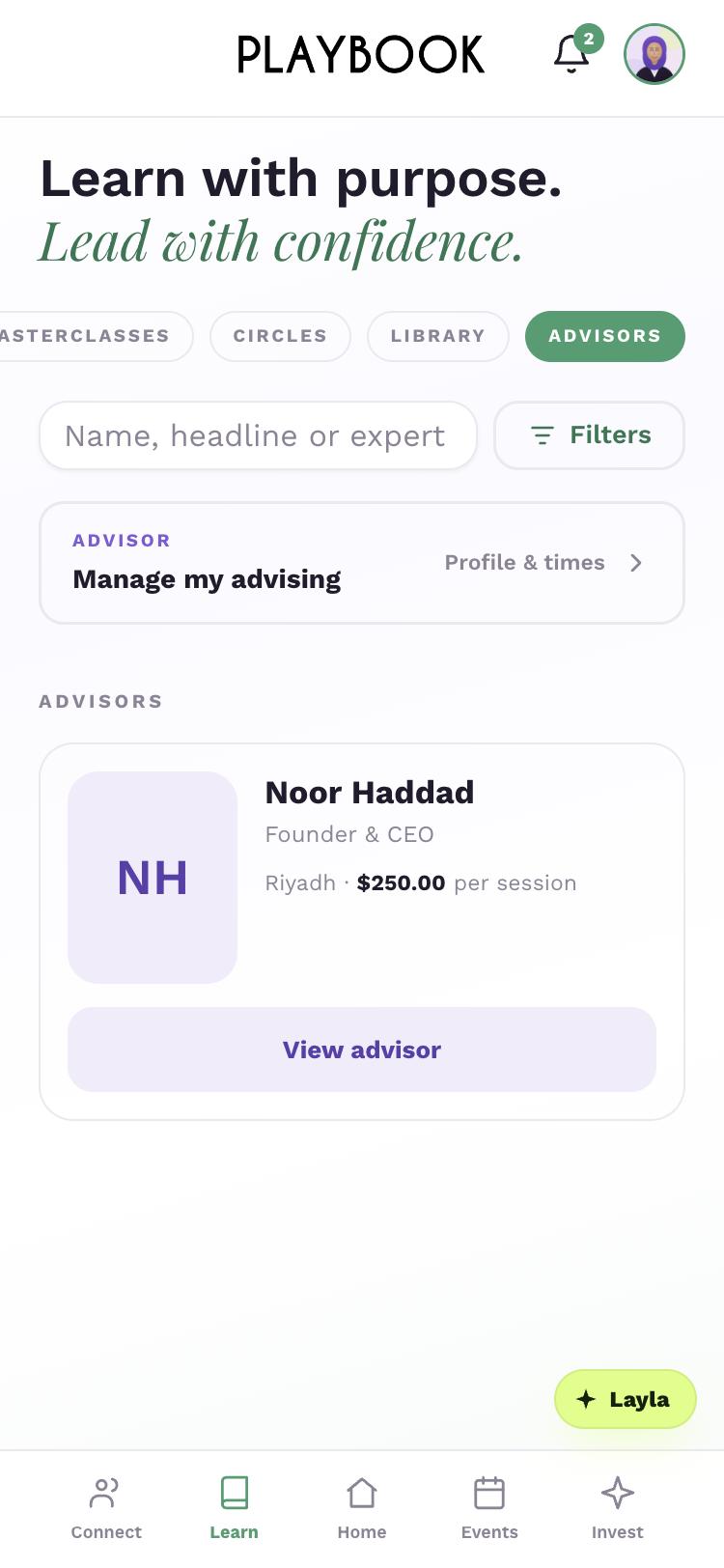
Choose an advisor, then tap View advisor.
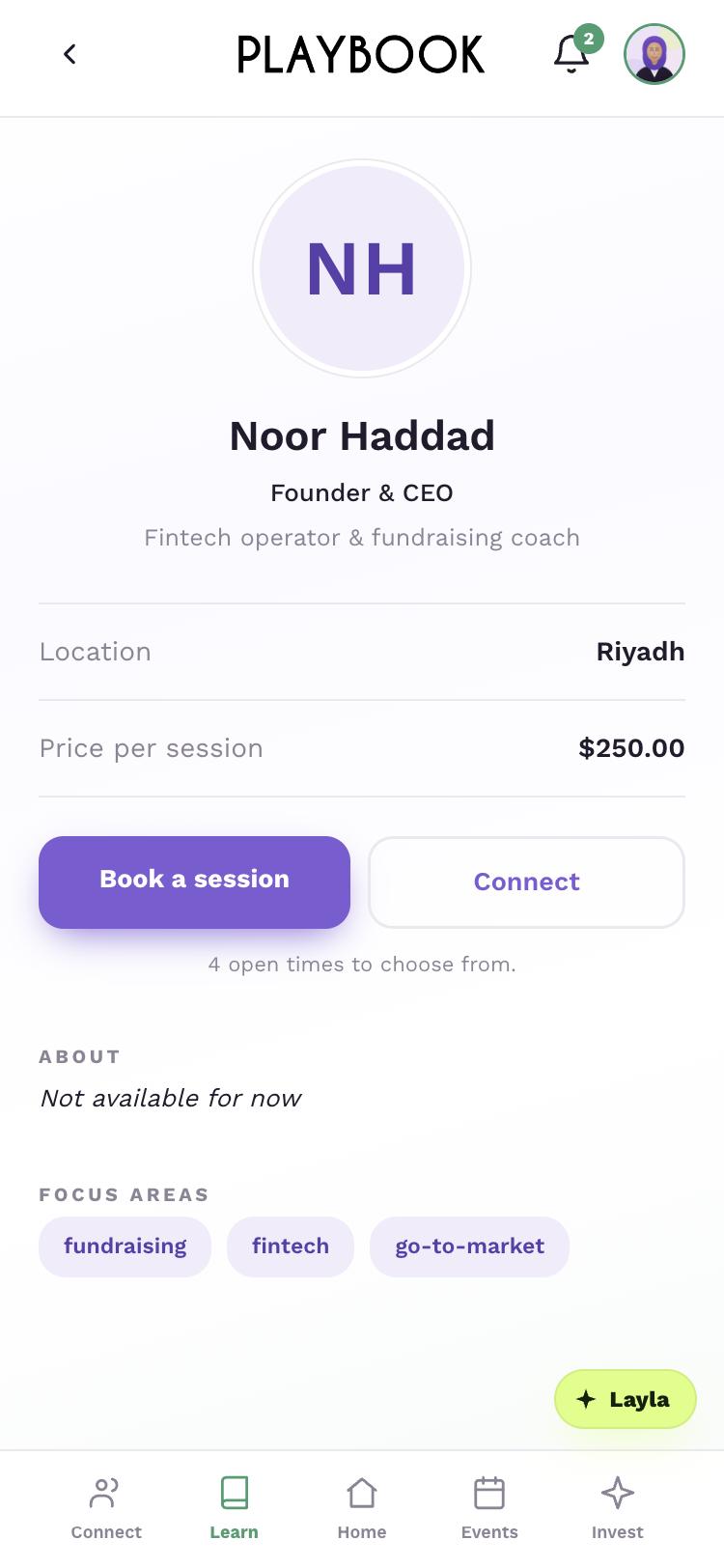
Tap Book a session.
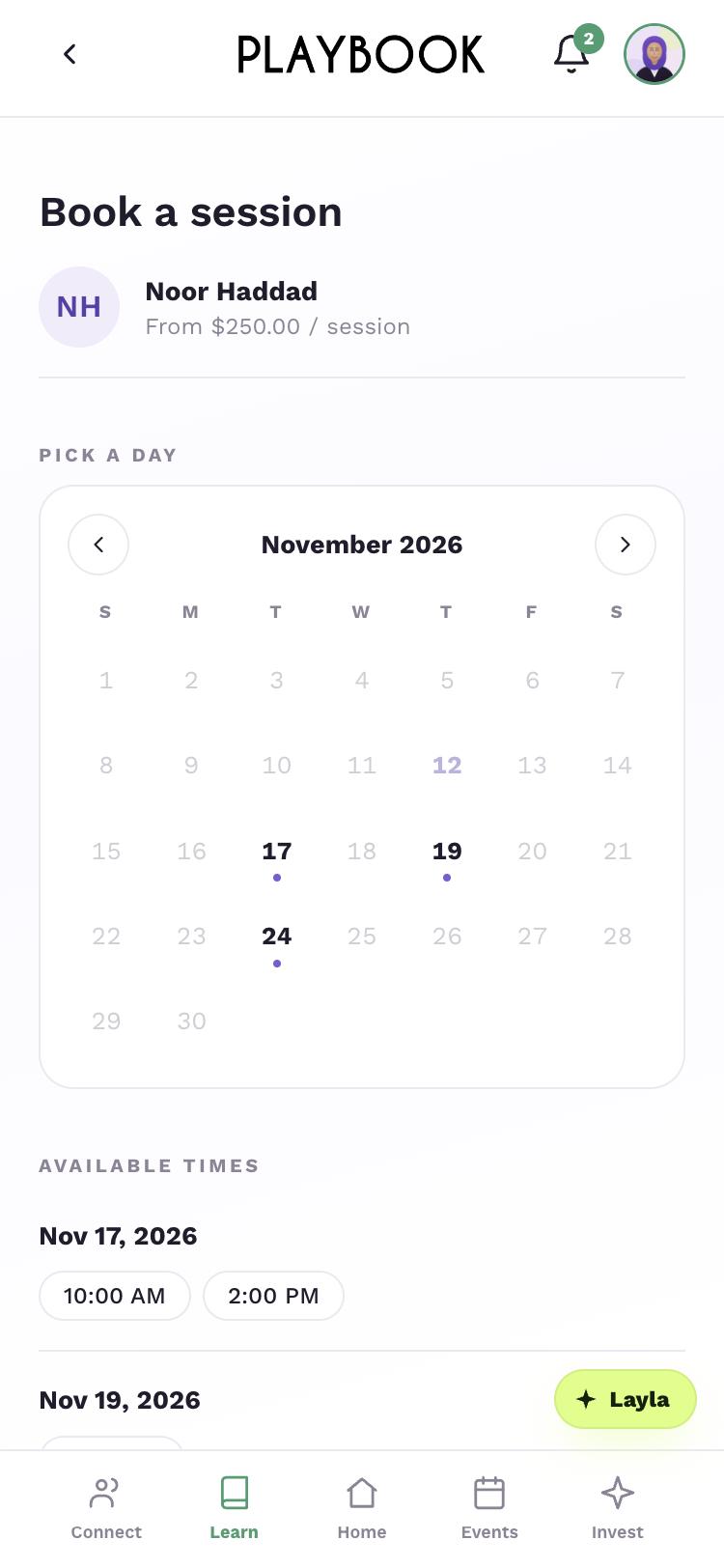
Pick an available time.
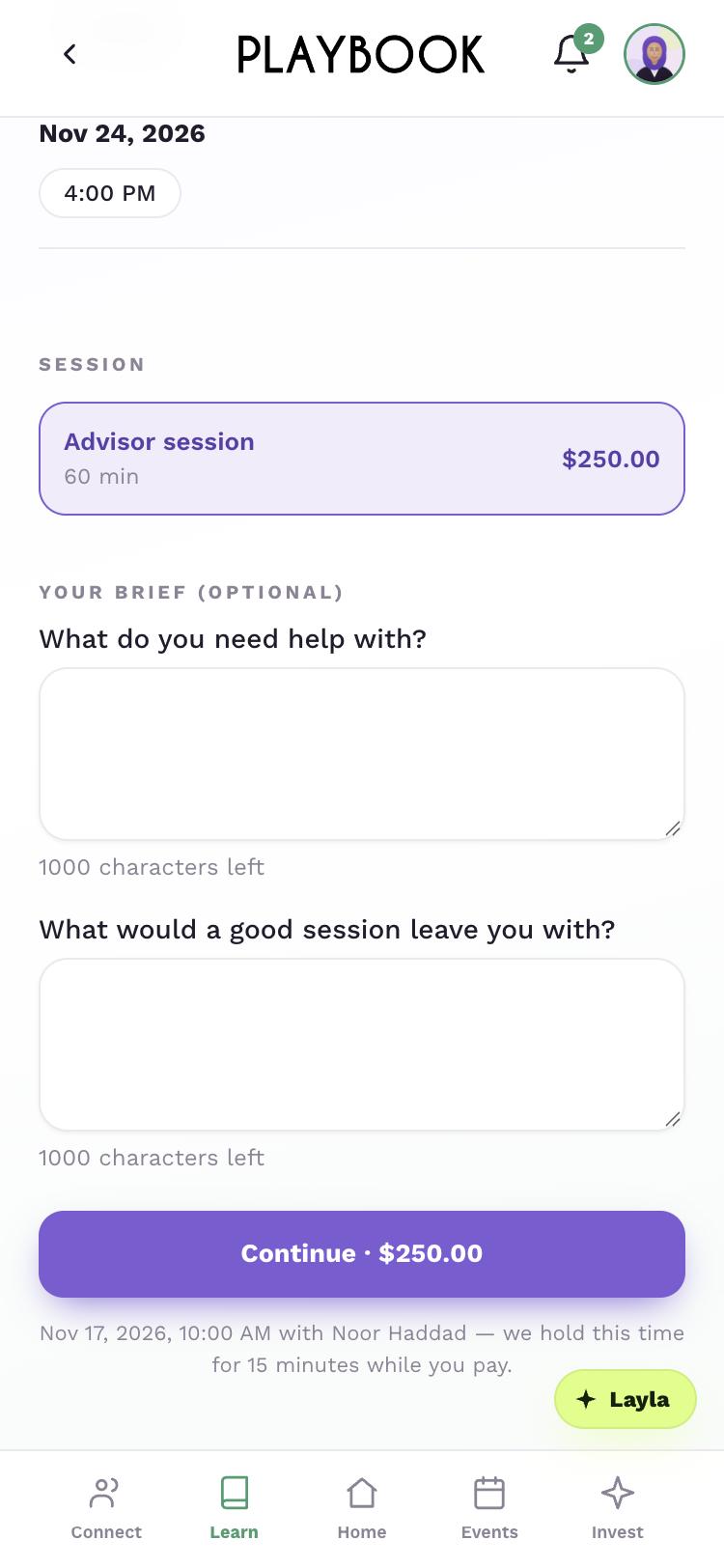
Add your brief, then tap Continue (it shows the session price). We hold this time for 15 minutes while you pay.
Step 1 of 5
Events
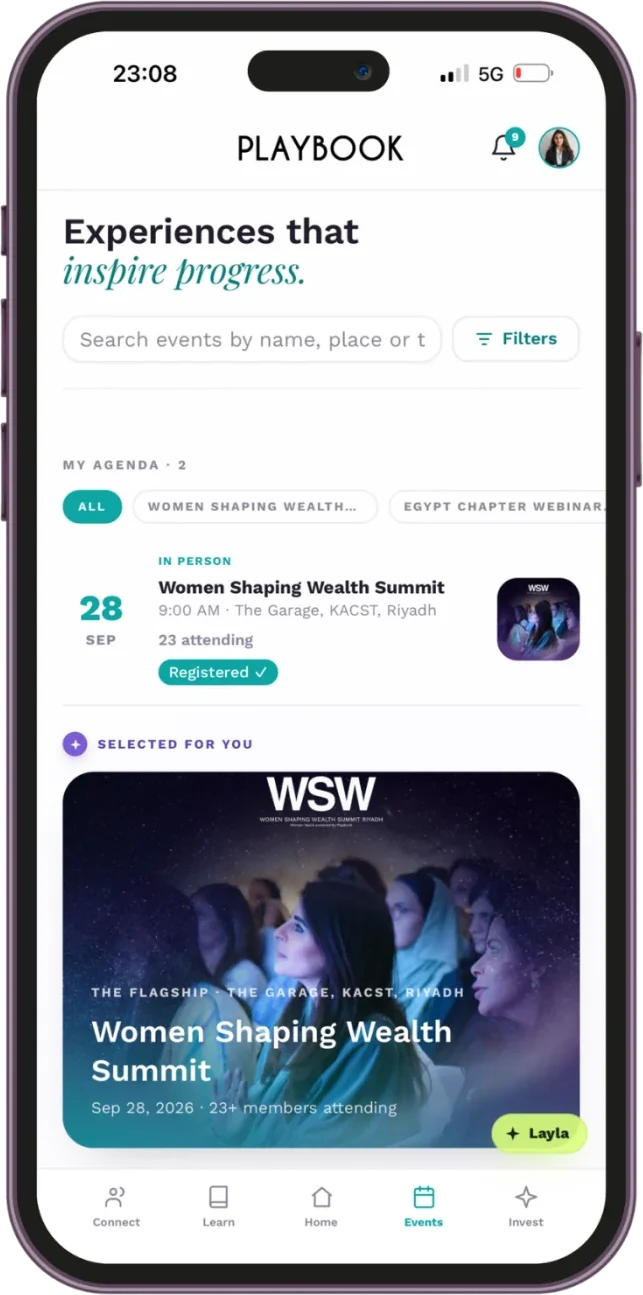
Experiences that inspire progress.
Find your next room, then keep tickets and agenda sessions together.
Tap Events.
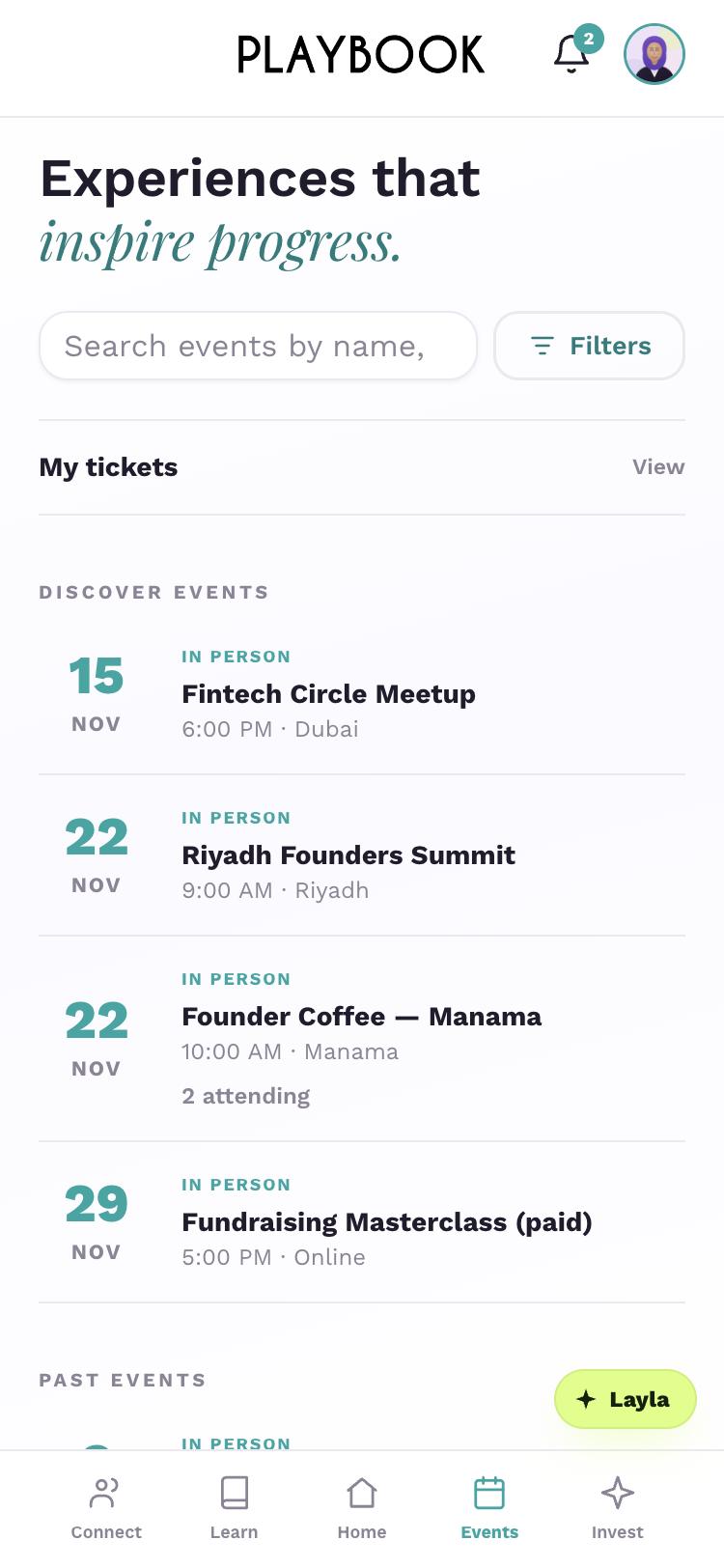
Choose an event.
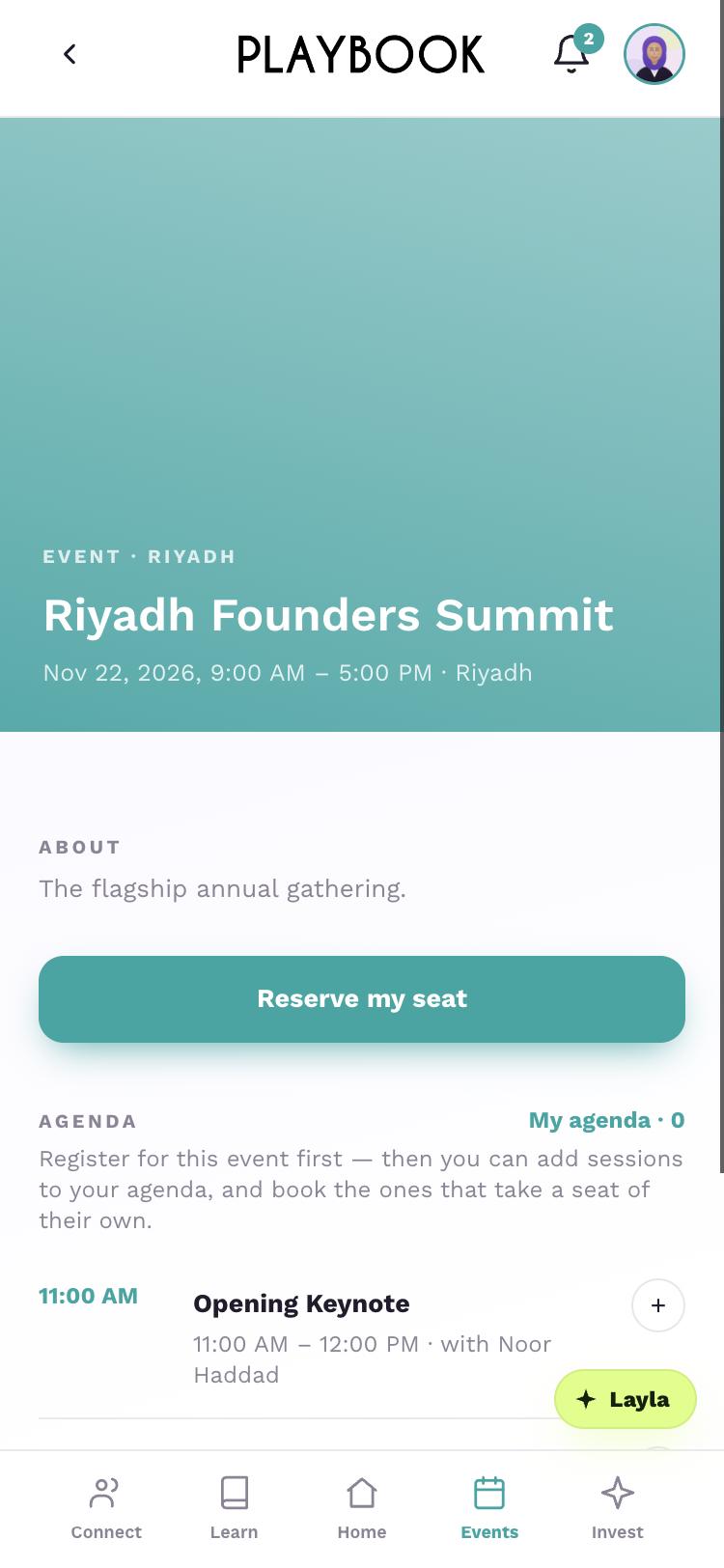
Tap Reserve my seat. Paid events show Buy ticket with the price instead.
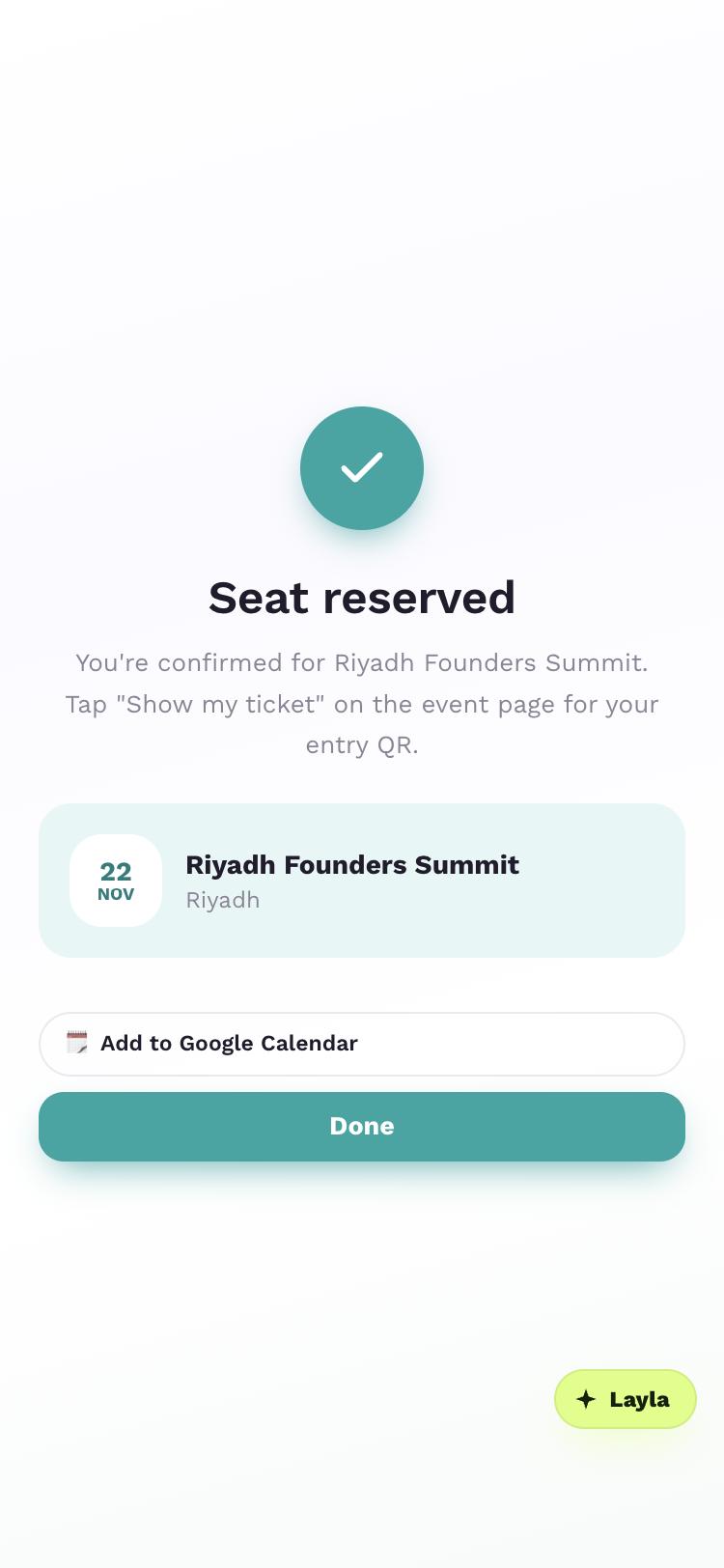
Tap Done.
Step 1 of 4
Tap My tickets.
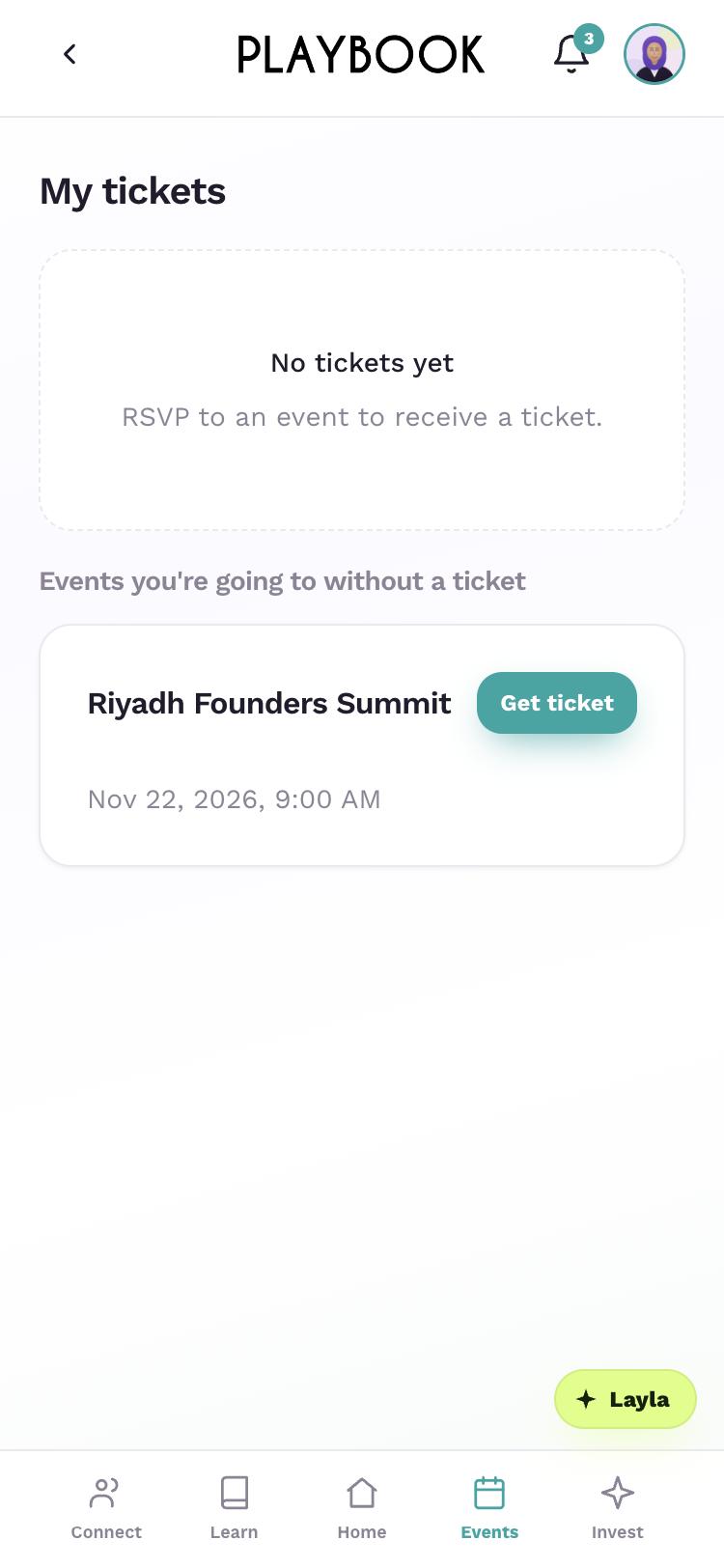
Tap Get ticket.
Open your booked event.
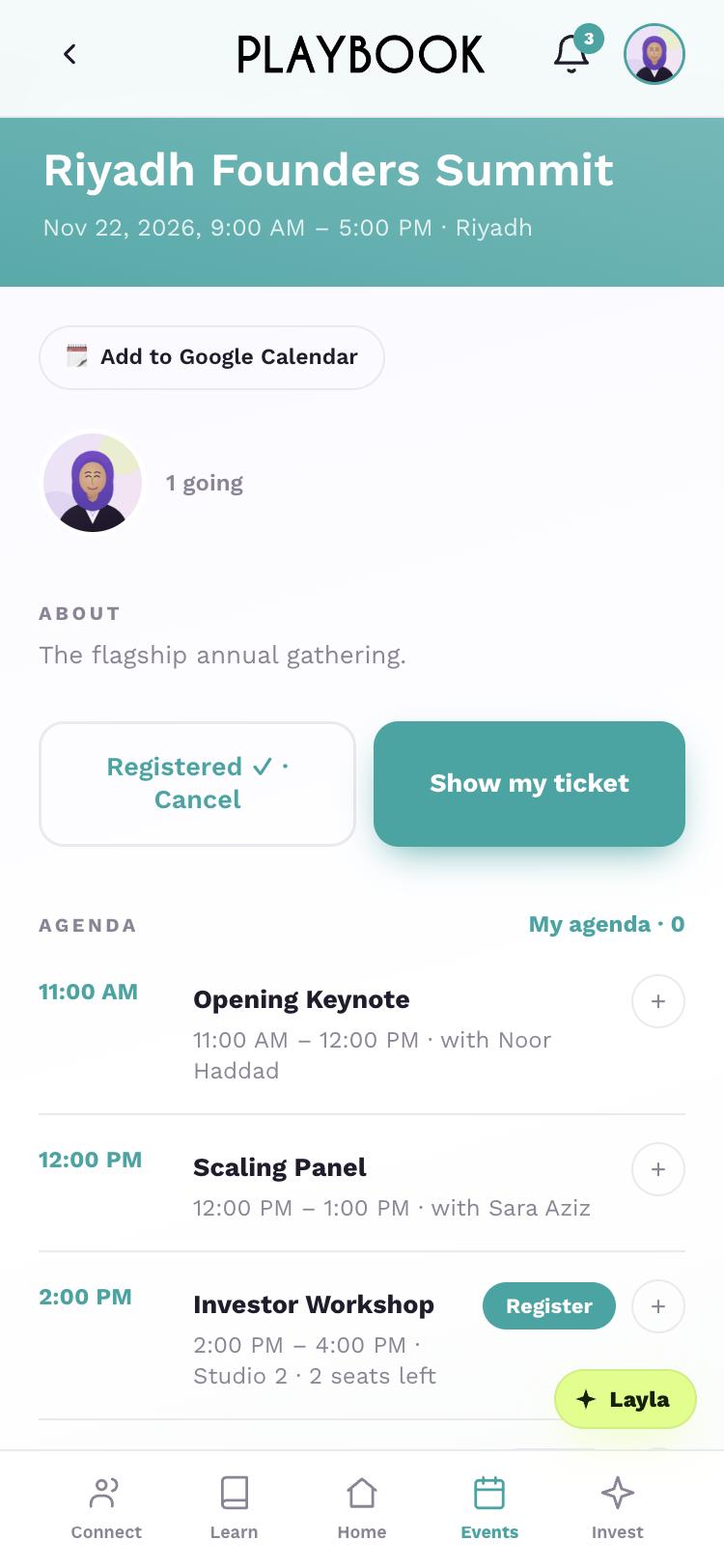
Tap Show my ticket for your entry QR.
Back on the event, tap + beside a session to add it to your agenda.
Tap Registered ✓ · Cancel.
Step 1 of 6
Invest
Invest in what you build.
PLAYBOOK makes introductions only. Nothing here is investment advice.
Tap Invest.
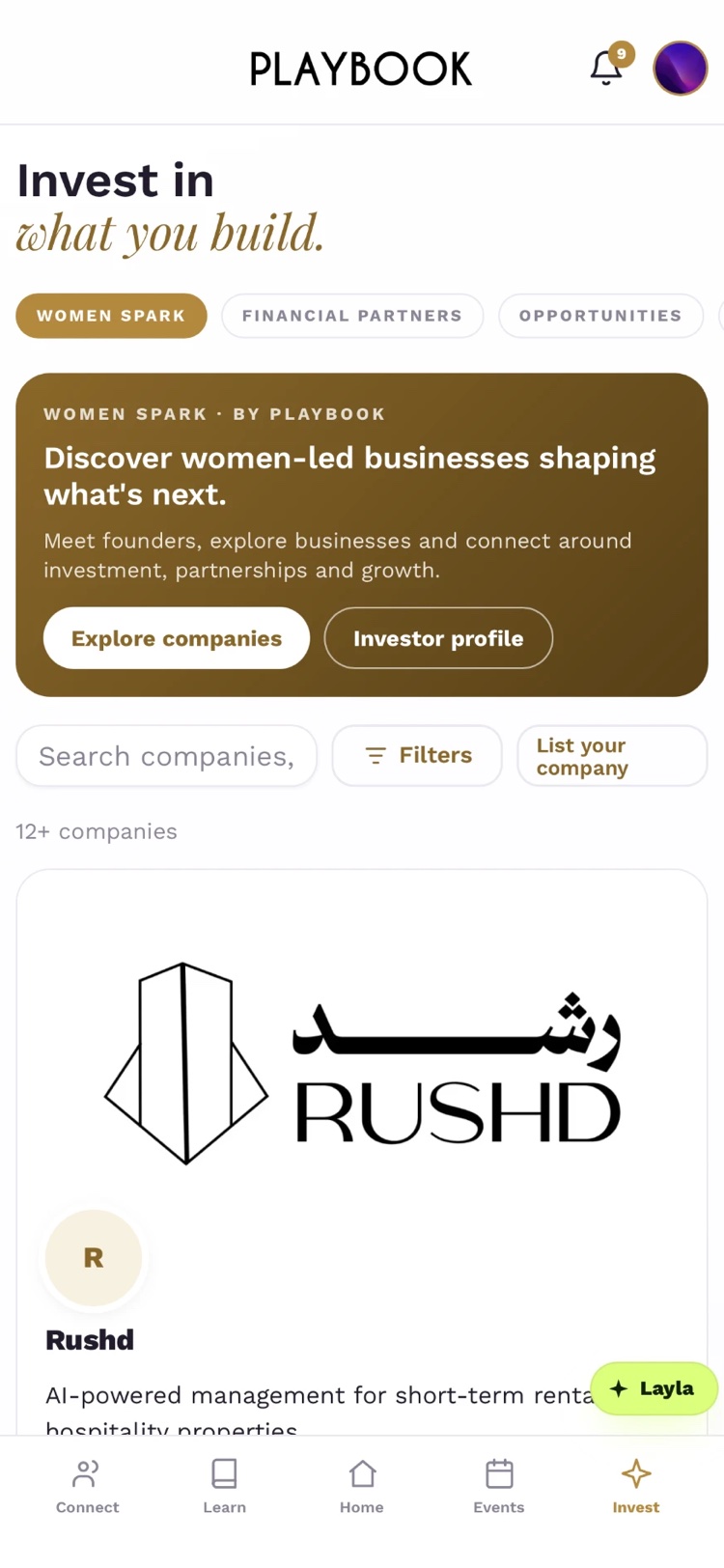
Swipe the shelf row: Women Spark, Financial Partners, Opportunities and Tools to help.
On Women Spark, tap Explore companies to meet women-led businesses.
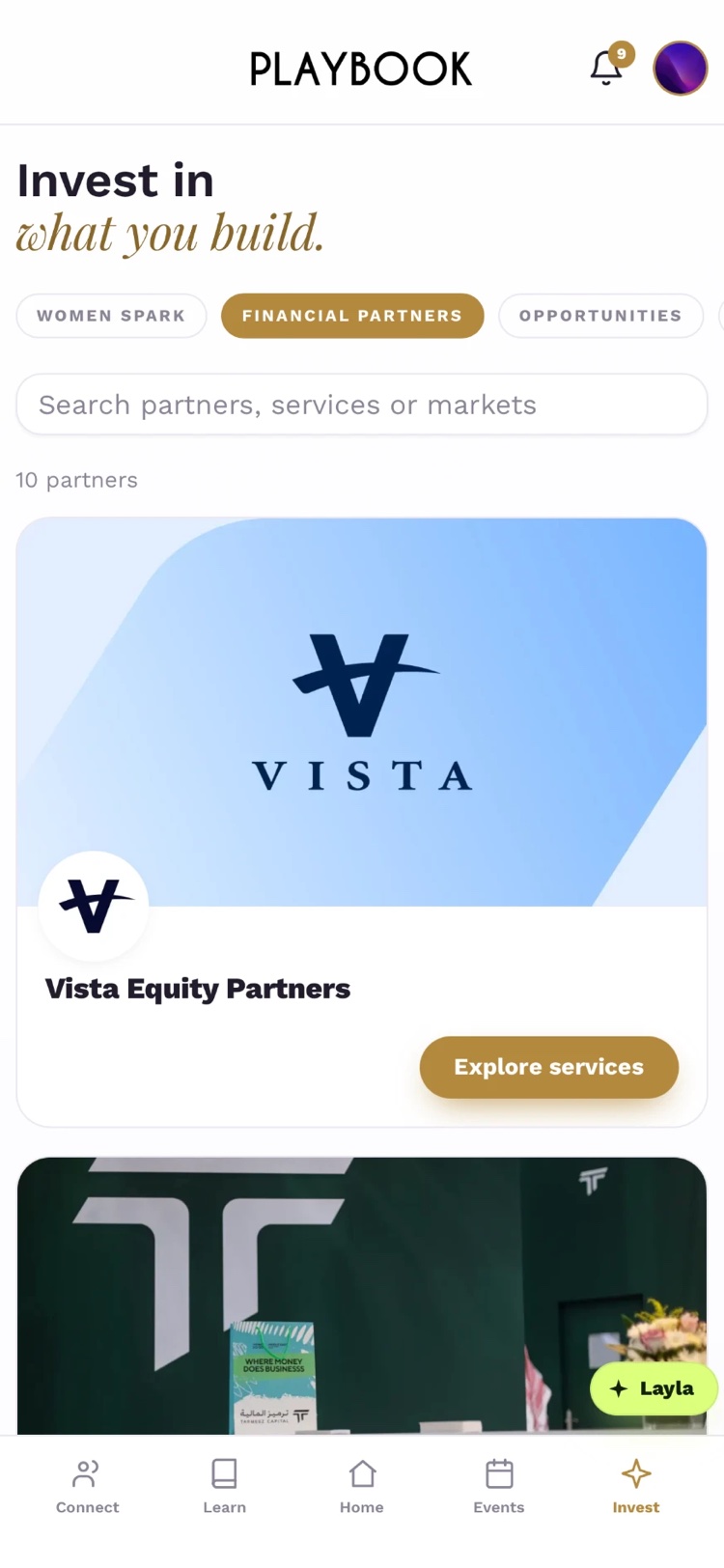
On Financial Partners, tap Explore services on a partner.
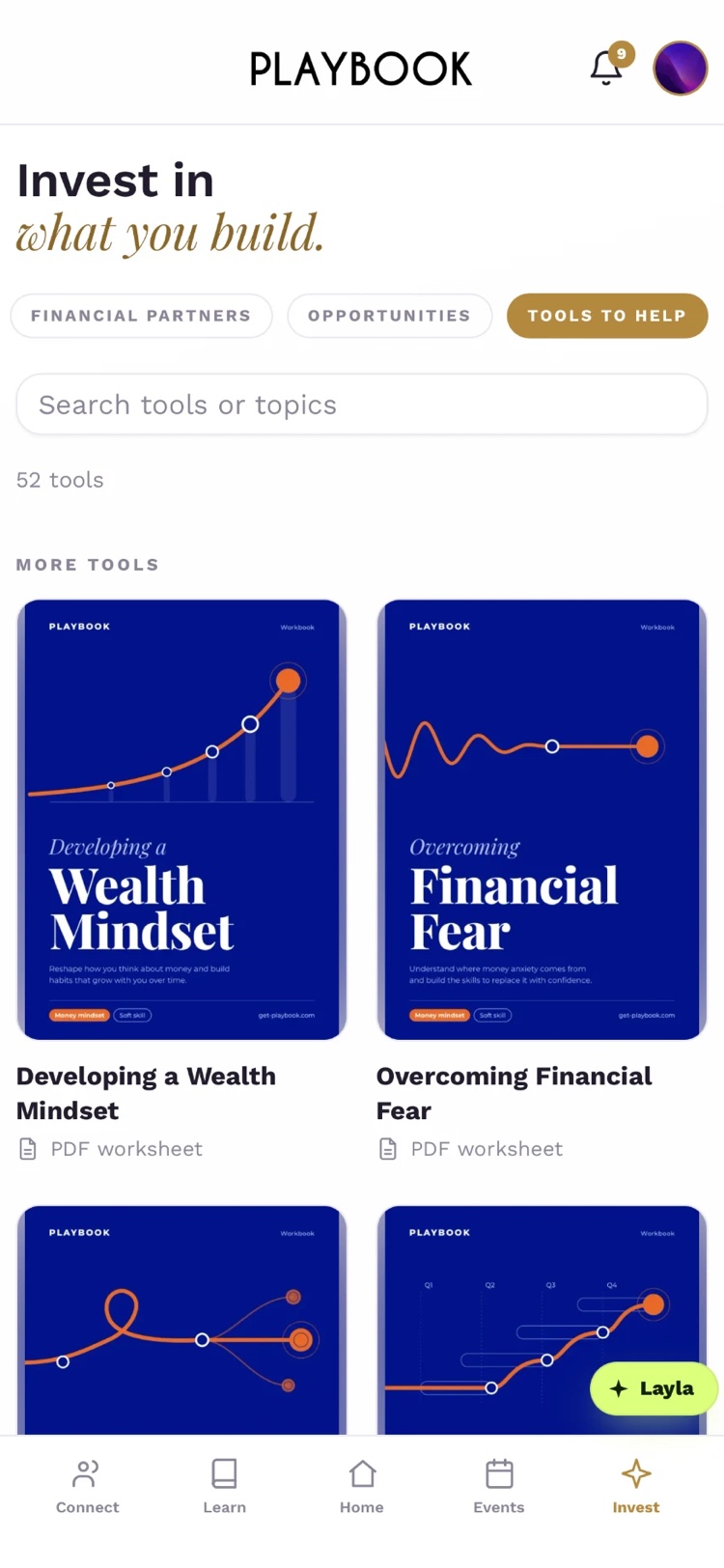
On Tools to help, open a PDF worksheet.
Step 1 of 5
Tap Opportunities.
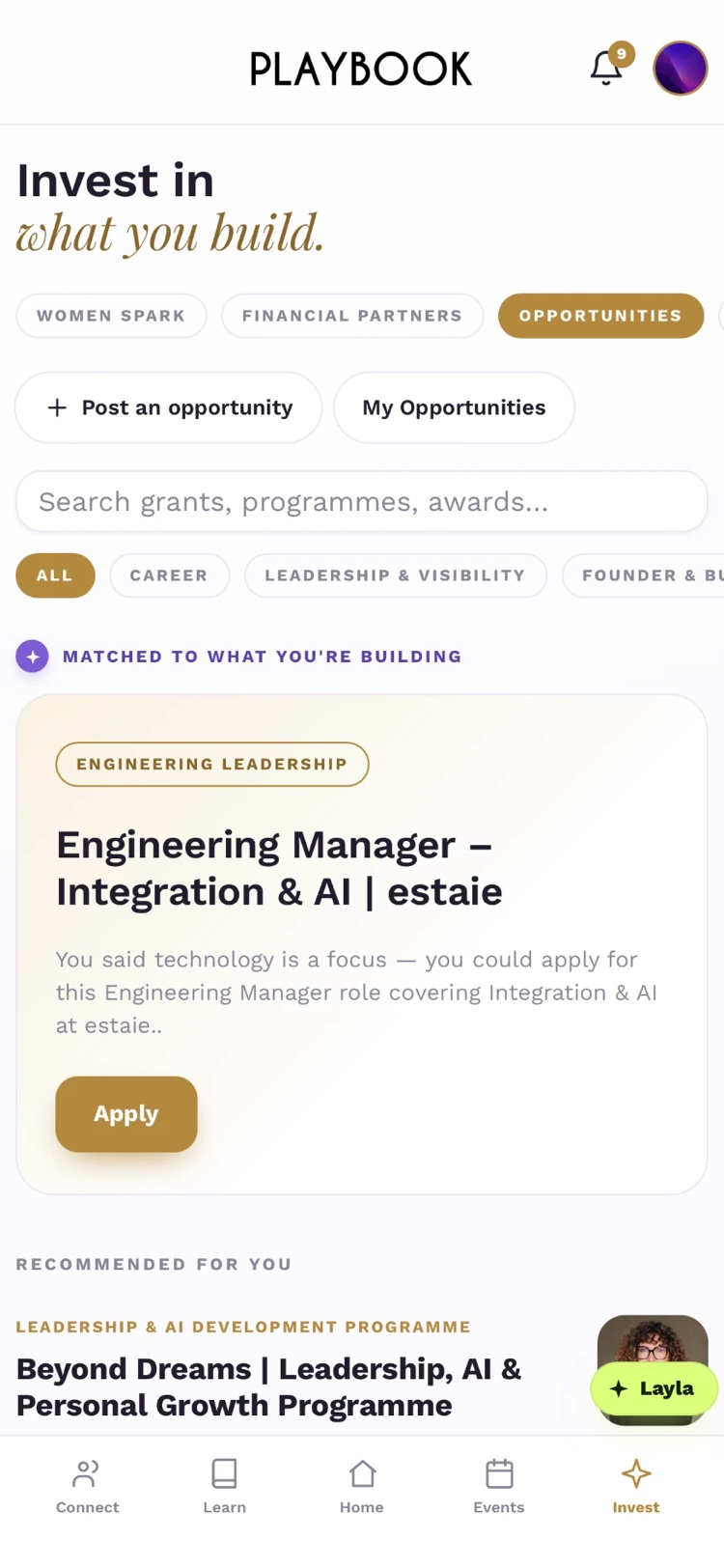
Open an opportunity.
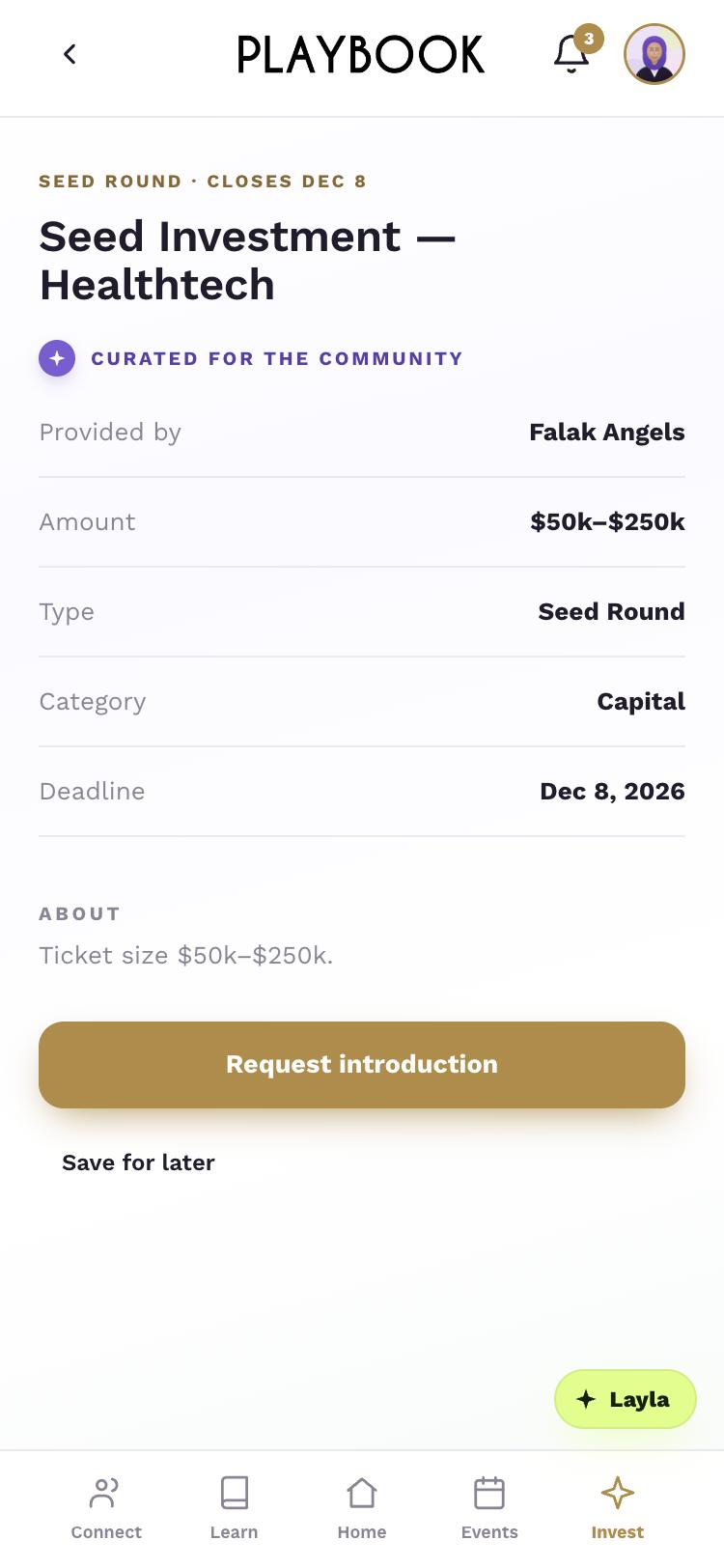
Tap its action, such as Apply or Request introduction — or Save for later.
Back on Opportunities, tap Post an opportunity.
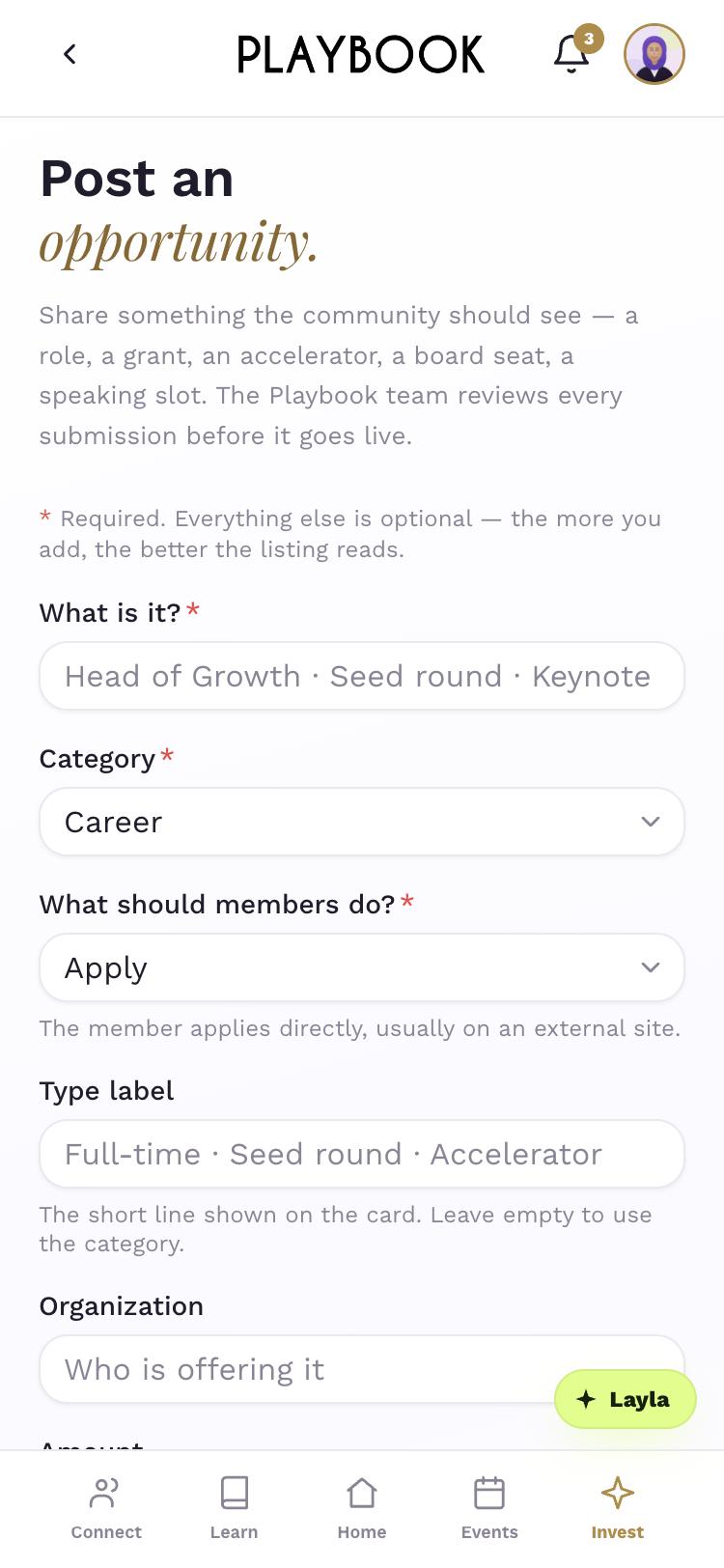
Complete What is it? and the required fields.
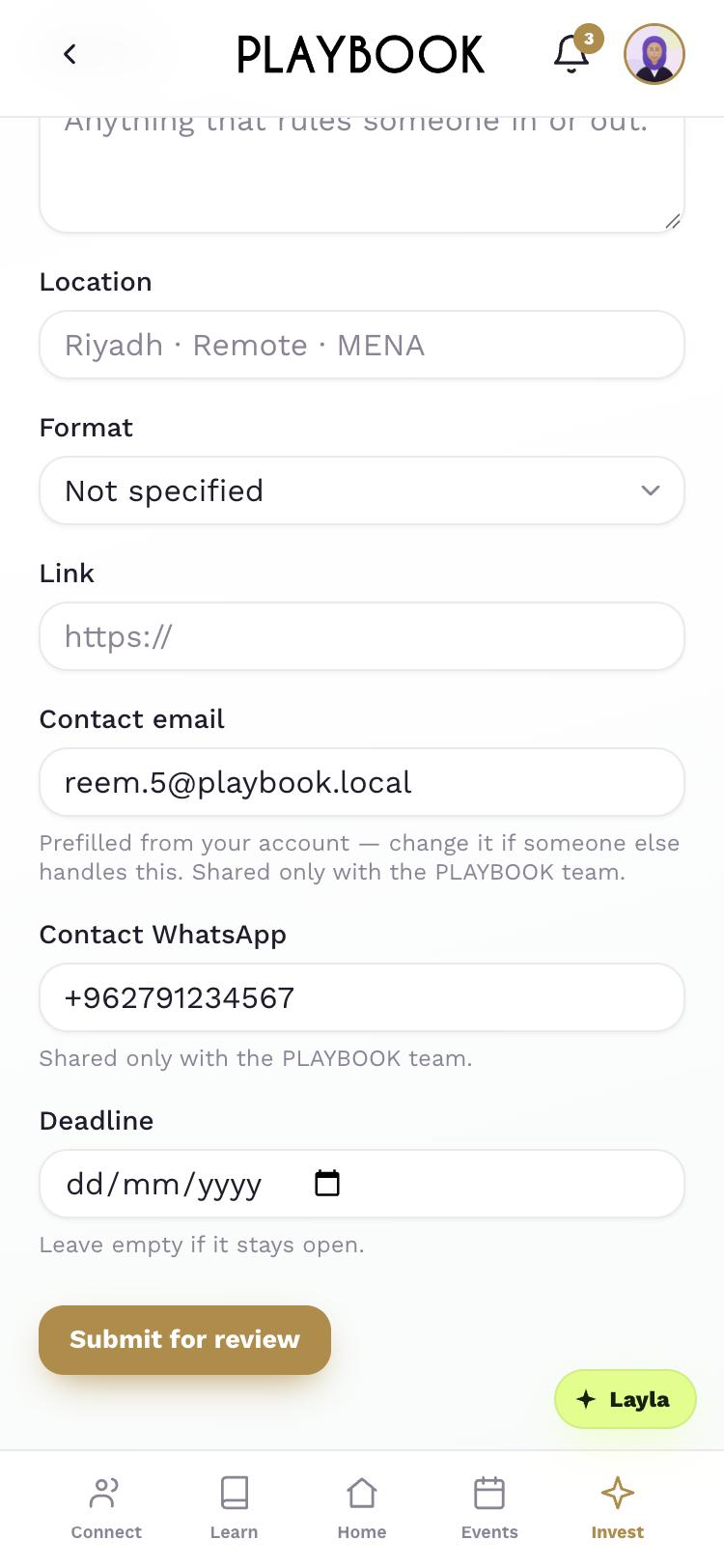
Tap Submit for review. The Playbook team reviews every submission before it goes live.
Step 1 of 6
Tap List your company.
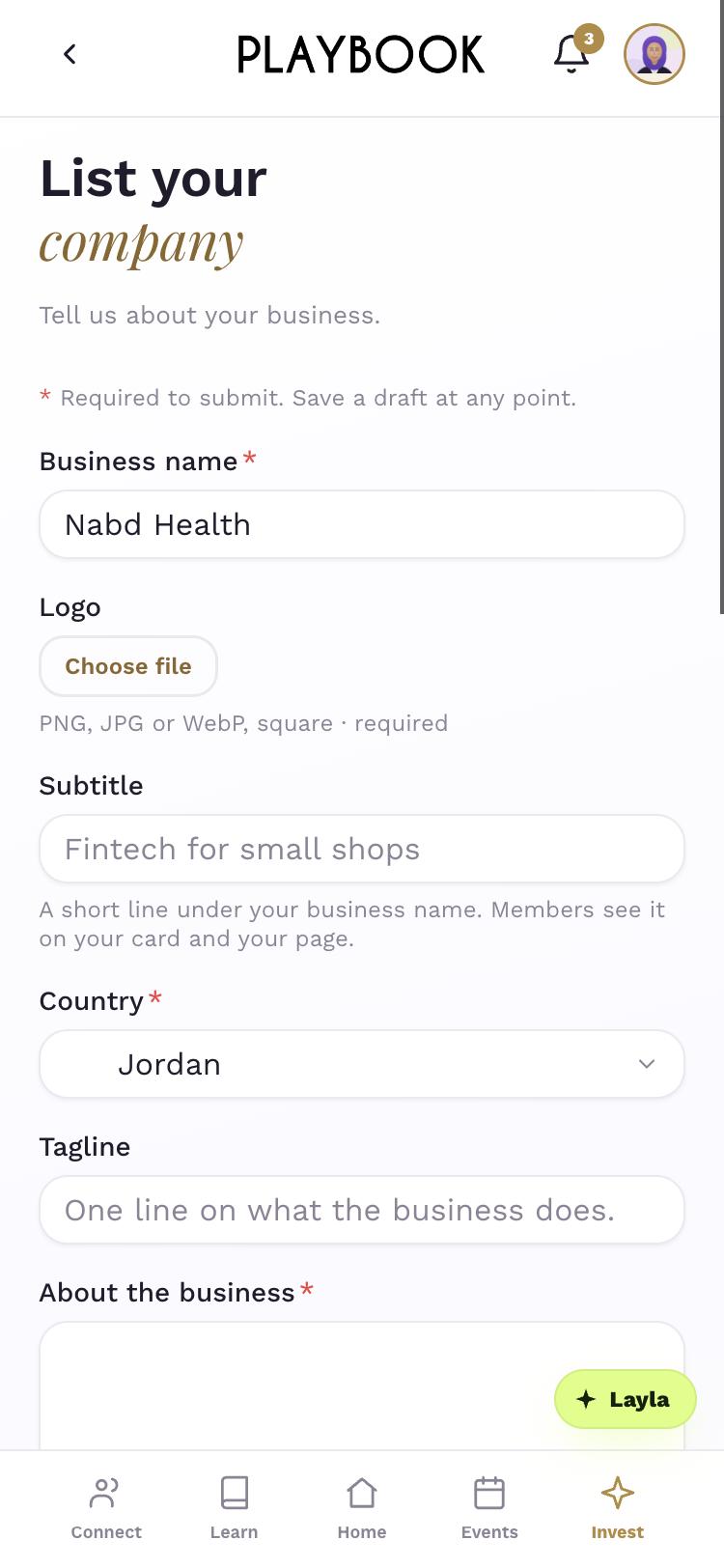
Enter your Business name and the required details.
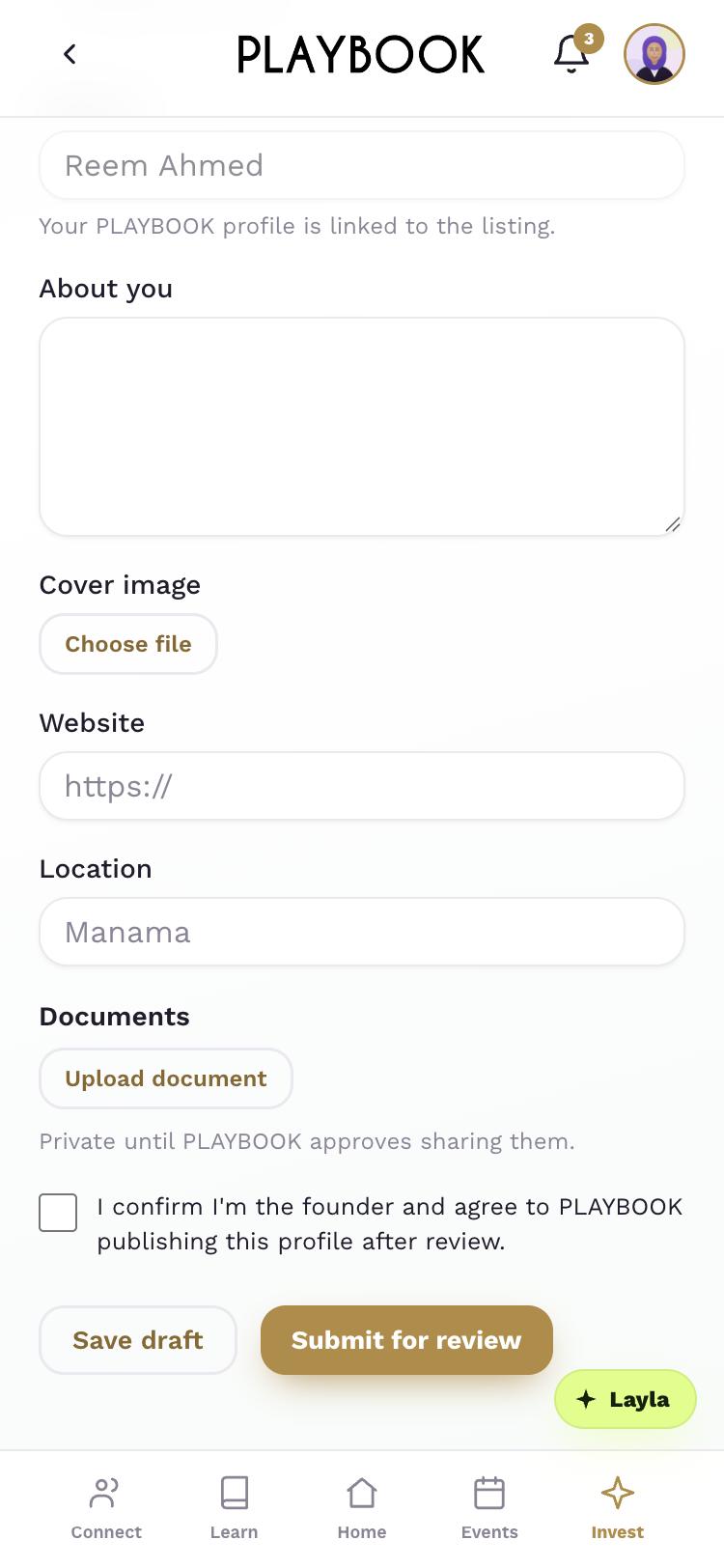
Tap Submit for review — or Save draft.
Step 1 of 3
Account & help
Account & help.
Manage your membership, settings and sign-in, or find the right team to contact.
Tap your photo.
Open Account & settings.
Tap Membership.
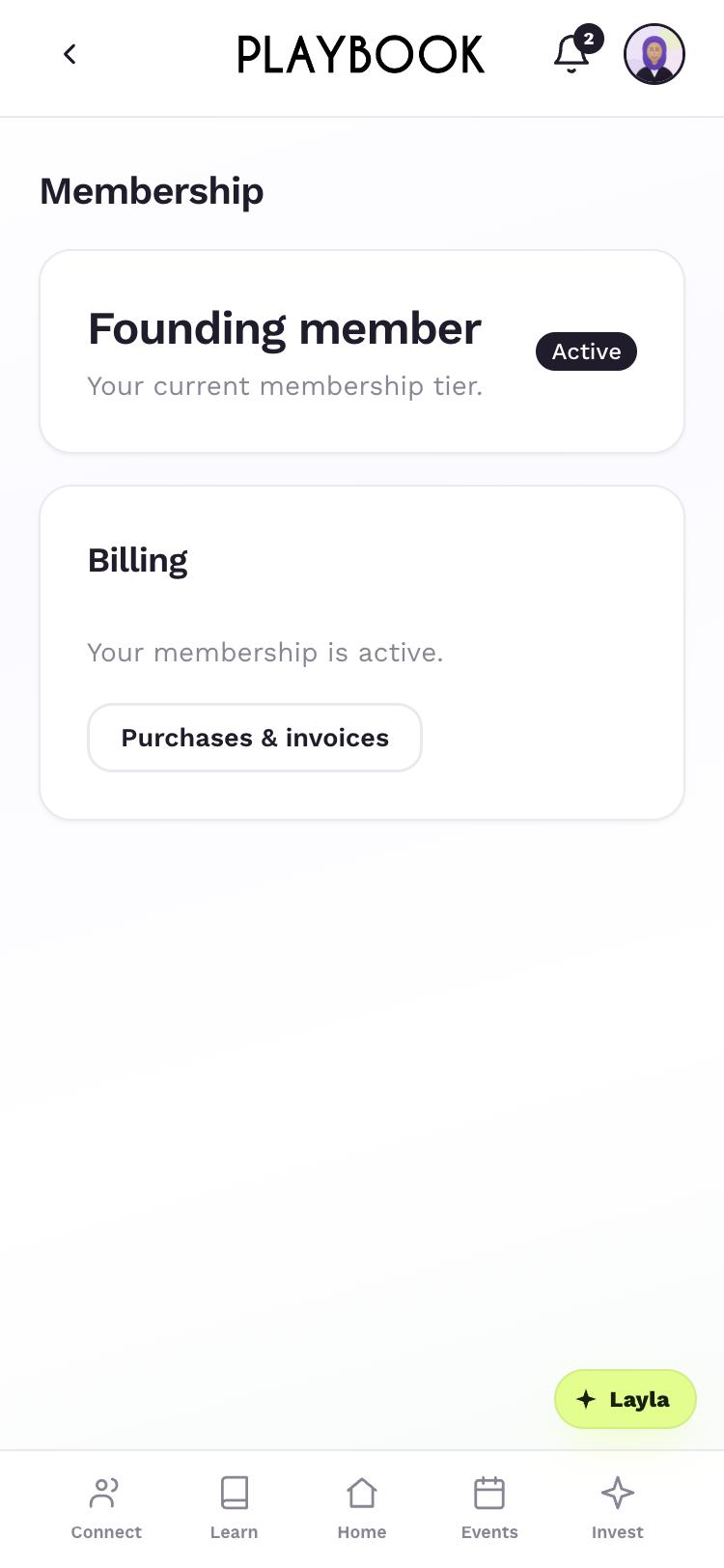
See your plan and the actions available to you, such as Replace card or Cancel membership.
Back in Account & settings, tap Orders & purchases.
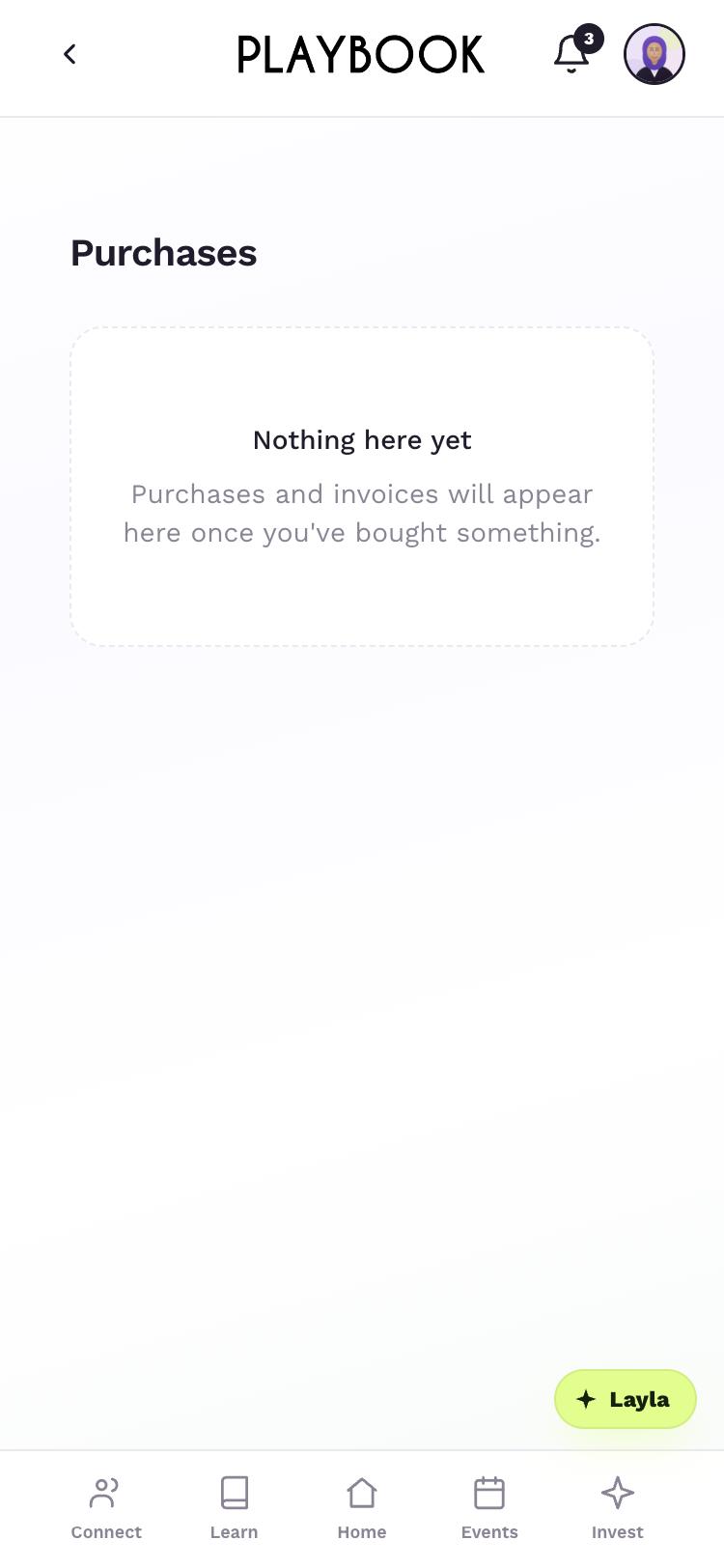
Review Purchases. Invoices appear here after you buy something.
Step 1 of 6
How do I manage renewal, plans or my payment card?
Open Membership in Account & settings. The page shows your renewal date. Card-paid members can use Replace card, Update payment method or Cancel membership; after the paid period, choose a new plan. App Store and Google Play members manage payment and plan changes in their store. If a card payment fails, update it there and PLAYBOOK retries it straight away.
Which membership plans are available?
Core comes as Core Monthly or Core Annual; the plans page shows each price and how you can start. Founding is an invitation-only lifetime membership.
Is anything charged separately?
Some advisor sessions, event tickets, courses and circles have their own price. The app shows that price before you continue.
Tap Notifications.
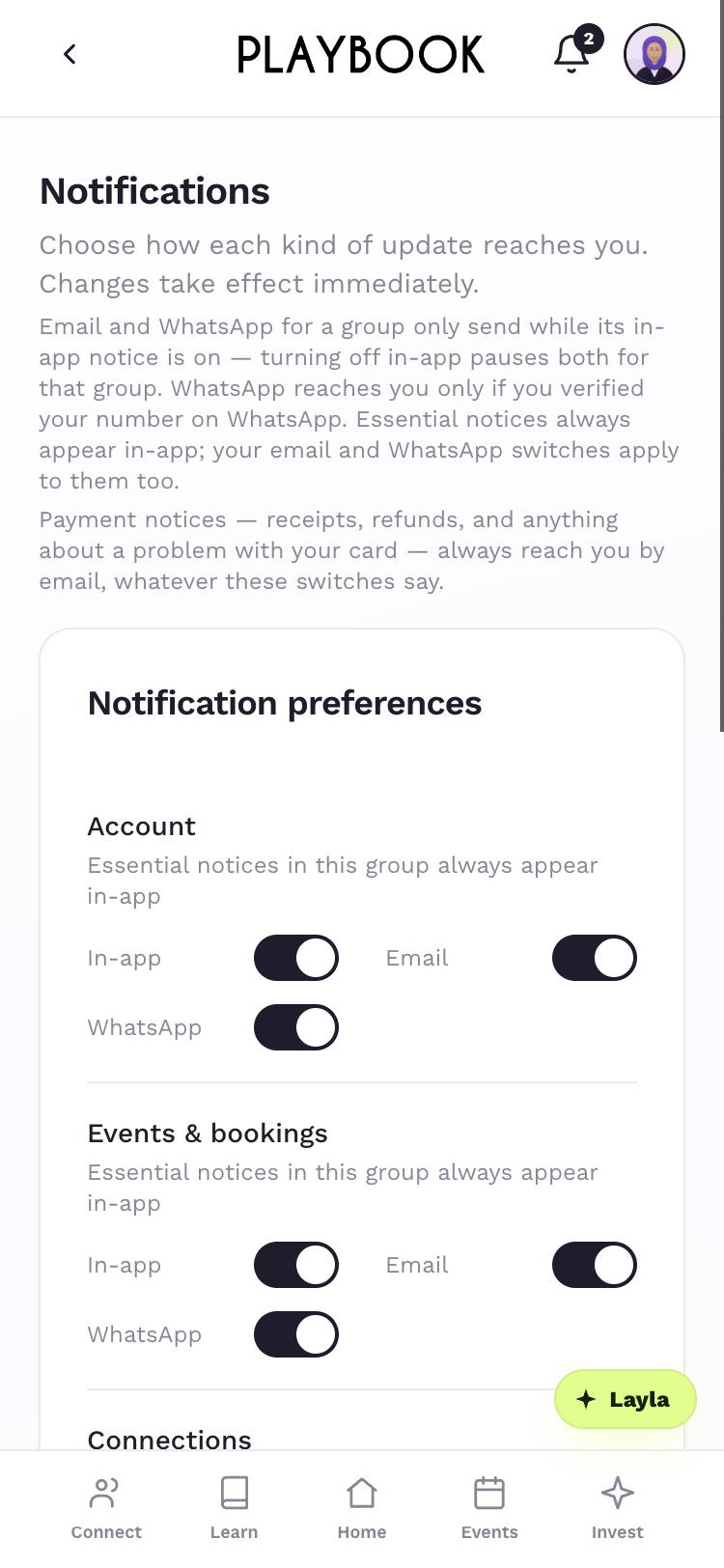
Choose In-app, Email or WhatsApp for each update. The iOS and Android apps add Push.
Back in Account & settings, tap Add email or phone.
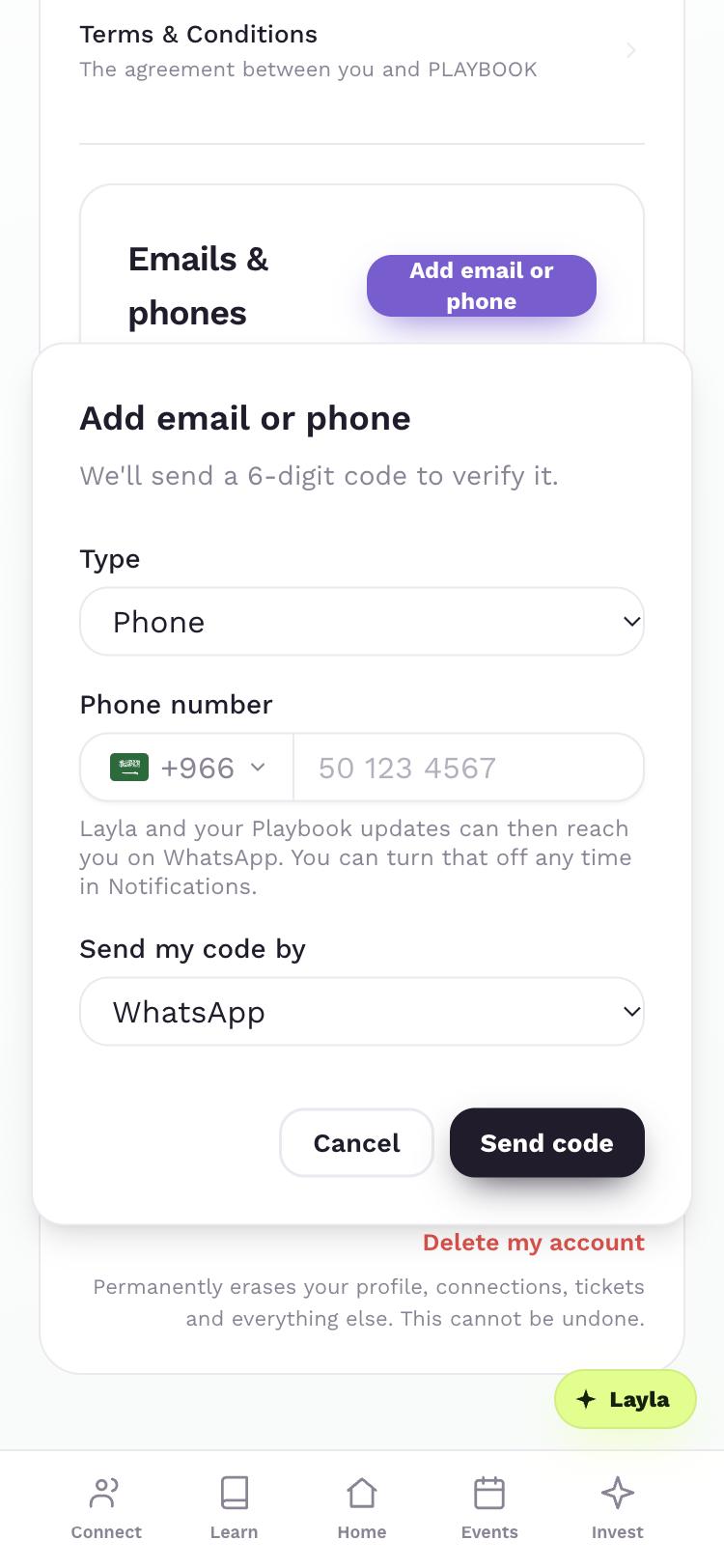
Choose Phone and WhatsApp, then tap Send code.
Step 1 of 4
Tap See everything we know about you.
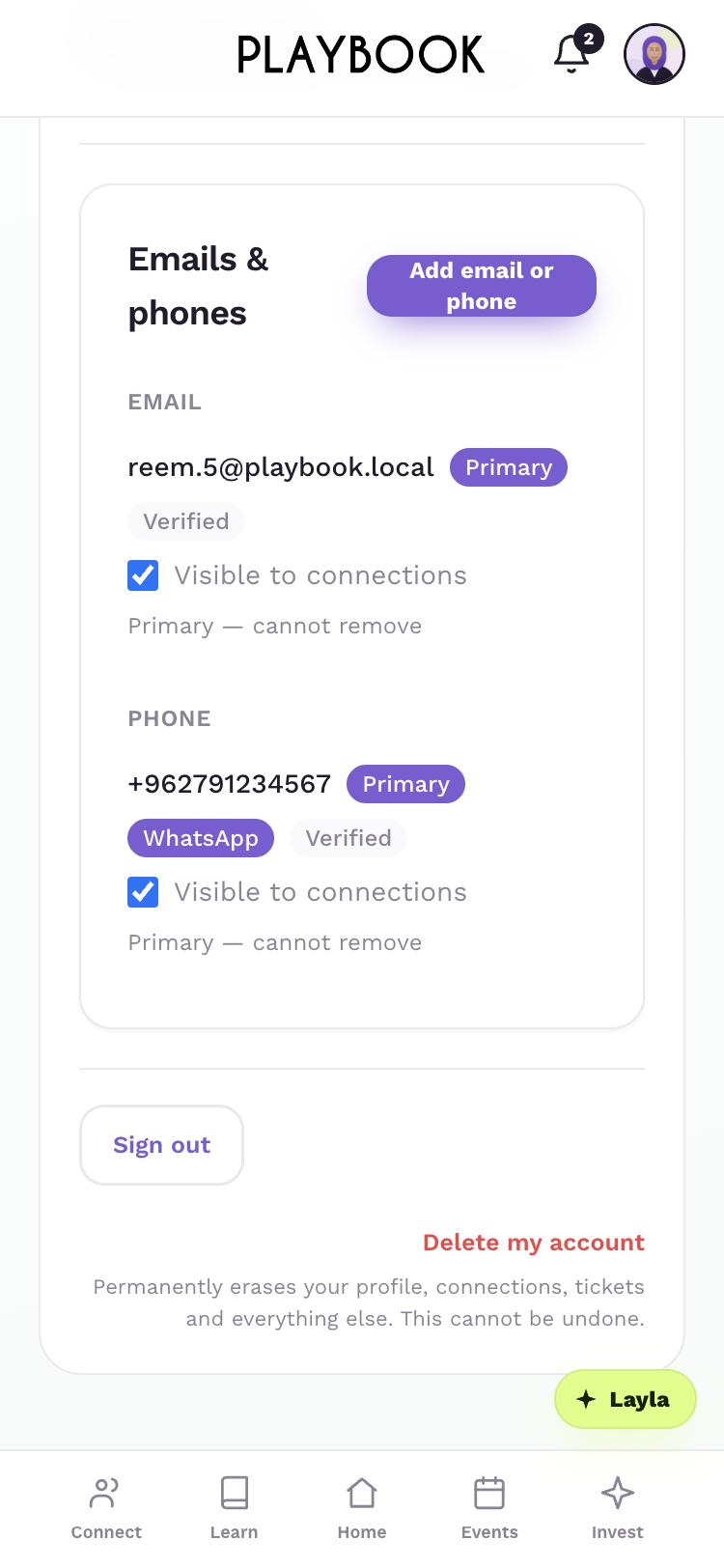
Back in Account & settings, tap Delete my account.
Step 1 of 2
How do I update my profile?
Open your Profile and tap Edit profile. You can update your About section and other profile details there.
What is the “Right now” card on my profile?
It shows what Layla currently understands as your goal, current ask, offer and topics. Tap Add or Update on the card to keep them current.
Can Layla and my connections reach me on WhatsApp?
In Account & settings, tap Add email or phone, choose Phone, then choose WhatsApp under Send my code by. After verification, turn on Visible to connections if you want connections to see that number.
How do I see, control or delete my data?
Open See everything we know about you for a read-only view, and use Privacy choices to control Layla, matching and marketing. For a privacy request, email privacy@get-playbook.com. To delete everything, tap Delete my account; deletion is permanent and you confirm with the email address shown, or your member ID if there is no email. The app tries to cancel a card subscription, but cancel an App Store or Google Play membership in that store first.
Who is Layla?
Layla is the assistant you can ask to find an advisor, course, event or opportunity. When she prepares an action, you review it before anything happens.
Why do my goals matter, and how do I improve matching?
Your goal and current ask are useful matching signals. Keep matching on and keep your goal, ask, offer, topics, role, industry and location current; your Profile shows which signals are still missing.
What makes a good current ask?
Be specific about what would be most useful right now. Write it so another member can understand what they could act on.
Can Layla help me write a goal?
Yes. Open Layla and ask Help me set a goal; that prompt also appears among the suggestions on Home.
Why isn’t Layla answering me?
Check Privacy choices and turn Layla on; when she is off, she cannot chat, check in or ask follow-ups. Turn on Matching and recommendations separately if you also want introductions.
How do introductions work?
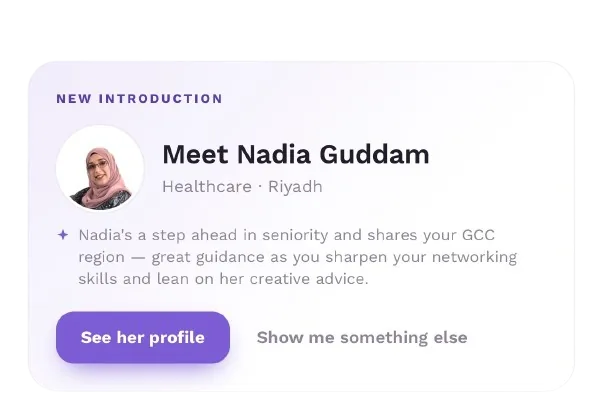
Open Your matches to see introductions PLAYBOOK thinks are worth making, then use Request introduction or Connect. Layla follows up on a requested introduction, and contact details unlock when you both say yes.
Can Layla do things for me?
Layla can prepare actions such as a connection request or profile update. Review the card, edit when offered, confirm it, or tap Not now.
What is Match readiness?
Match readiness is the percentage showing how much useful matching signal Layla has. The checklist shows what is complete, and Improve my matches helps fill the gaps.
Why am I not getting introductions?
Check that matching is on in Privacy choices and that your membership includes matching. If you see No more matches this week, PLAYBOOK will add introductions as it finds members who fit your goals, and you can tap Find new introductions when that option is available.
How do I sign in or create an account?
Enter your email and choose Email me a sign-in link on the web or Email me a sign-in code in the iOS or Android app. Continue with Apple and Continue with Google appear when those options are available, and any of these sign-in routes can create your account.
Can I sign in with a password instead?
Yes. Open Sign-in & security in Account & settings and choose Set up a password, then use Sign in with a password instead on the sign-in screen.
Where are my notifications?
Tap the bell at the top of the app to open Notifications. There you can tap Mark all read or Clear.
Why am I not getting notifications?
Open Account & settings › Notifications and check the channels for that update; Email and WhatsApp also need In-app on, and WhatsApp needs a verified number. The iOS and Android apps add Push; allow notifications for Playbook in your phone settings. Payment notices, such as receipts, refunds and card problems, always come by email.
Can I block or report someone?
Open the member’s profile, tap More, then choose Report or Block followed by their name. Blocking hides you from each other across PLAYBOOK, does not notify them, and can be undone from Blocked members.
Can I cancel or change a booking?
For an event, open it and use Registered ✓ · Cancel or Waitlisted · Leave waitlist. Advisor sessions have a Cancel button before a confirmed session starts; if you cancel your own paid session, it is not refunded automatically.
How can I contact the PLAYBOOK team?
Ask Layla for the right contact and use Email with summary to open a draft. Membership and account: memberexp@get-playbook.com; community and events: community@get-playbook.com; technical support for errors, sign-in trouble or pages that will not load: developer@get-playbook.com.
You're all set
Your next step starts here.
Use the guide whenever you need a hand with PLAYBOOK.